
Documentation Test Site
Gallery view
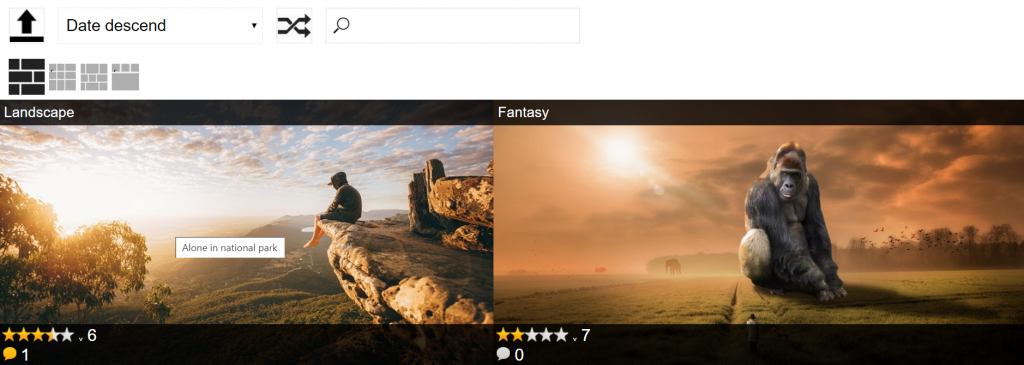
“Edit options” > “Upload options” > “In gallery form” Show example

“Edit options” > “Multiple pics options” > “Allow sort” Show example
“Edit options” > “Multiple pics options” > “Random sort button” Show example

“Edit options” > “Multiple pics options” > “Allow search for images” Show example
“Edit options” > “Multiple pics options” > “Enable full window button” Show example

Views management: “Edit options” > “Multiple pics options” Show example

Five star rating: “Edit options” > “Voting options” > “Allow vote via 5 star rating” Show example

One star rating: “Edit options” > “Voting options” > “Allow vote via 1 star rating” Show example

“Edit options” > “Gallery options” > “Allow comments” Show example

Image title: “Edit upload form (then go to upload form field)” > “Show as title in gallery (only 1 allowed)” Show example

Image title by hovering: “Edit upload form (then go to upload form field)” > “Show as HTML title attribute in gallery (only 1 allowed)” Show example
Single image view
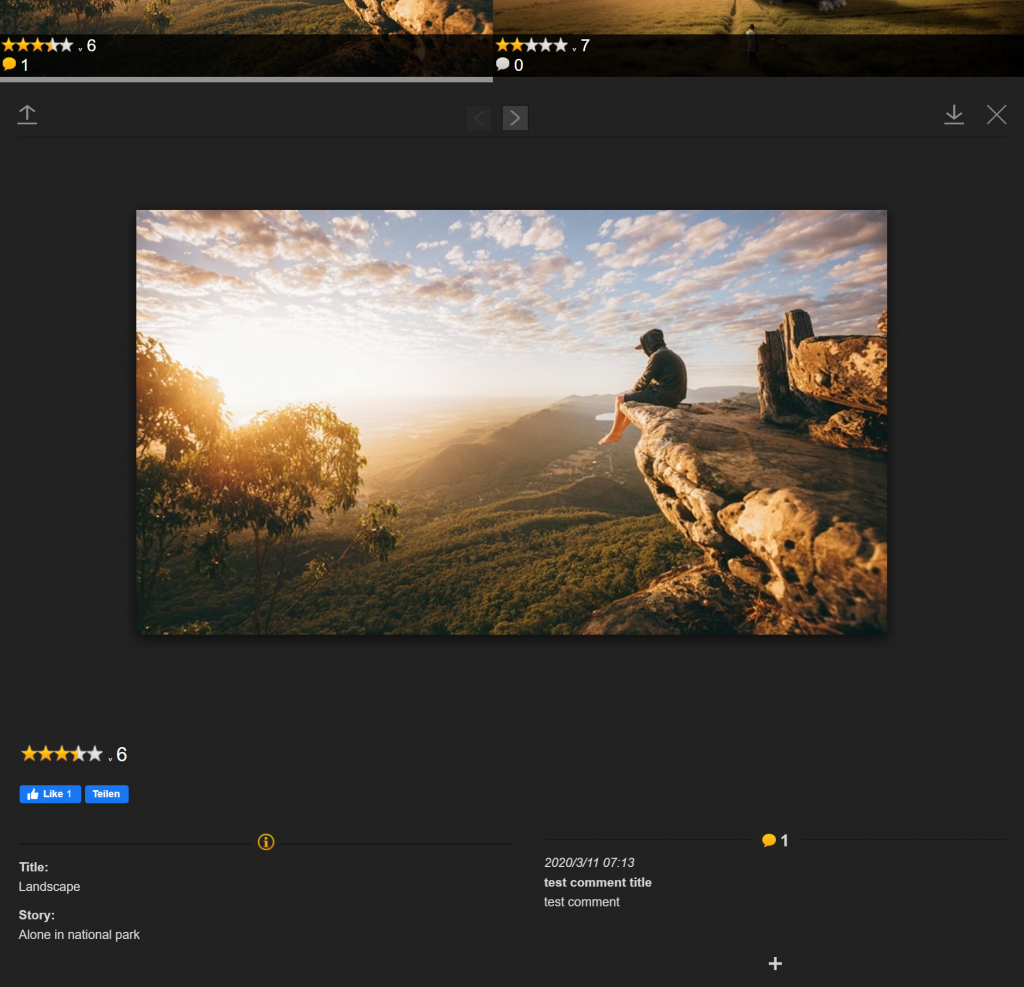

“Edit options” > “Upload options” > “Activate in gallery upload form” Show example

“Edit options” > “Single pic options” > “Enable download button of original image source”Show example

“Edit options” > “Multiple pics options” > “Enable full window button” Show example
Five star rating: “Edit options” > “Voting options” > “Allow vote via 5 star rating” Show example
One star rating: “Edit options” > “Voting options” > “Allow vote via 1 star rating” Show example

Facebook voting: “Edit options” > “Voting options” > “Vote via Facebook like buttton” Show example
“Edit options” > “Gallery options” > “Allow comments” Show example
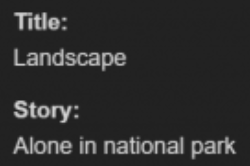
Image information in single view: “Edit upload form (then go to upload form field)” > “Show as info in single view” Show example
Upload options
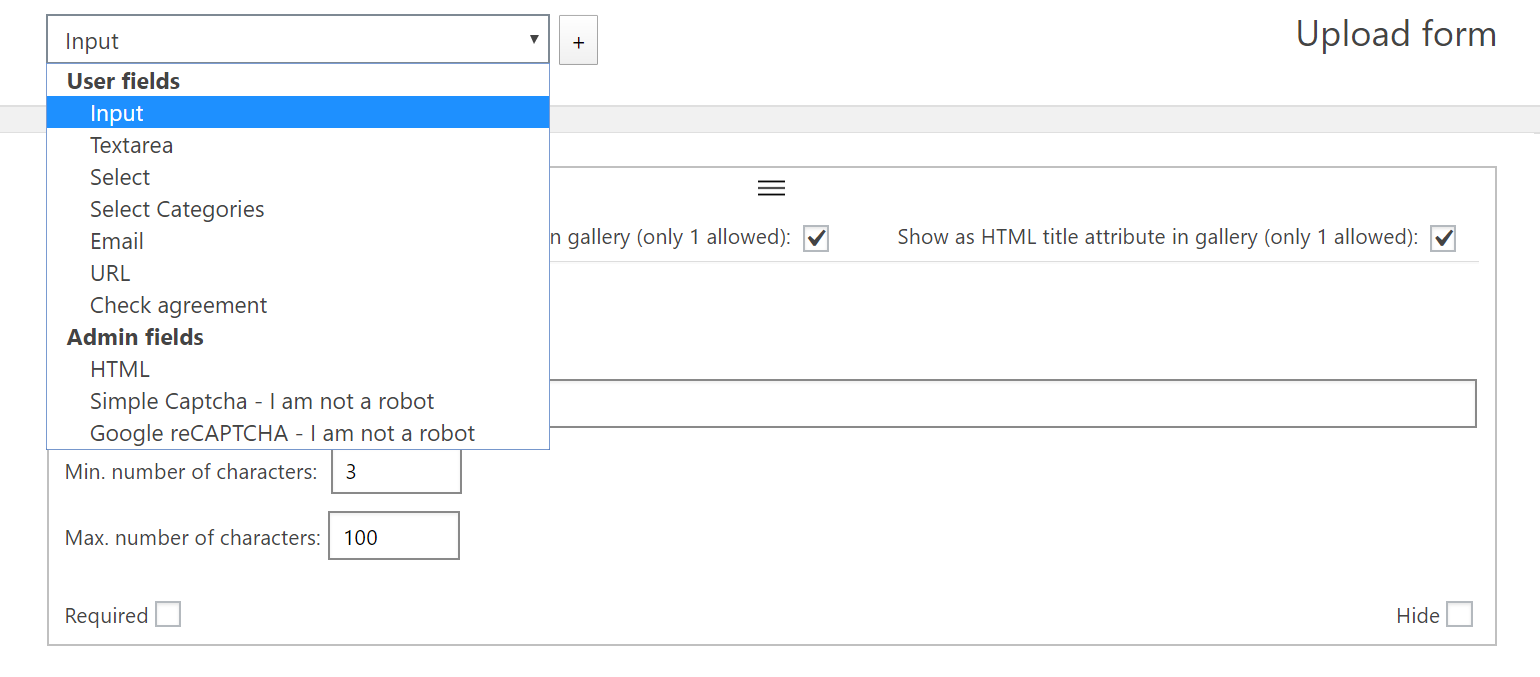
10 different field types can be selected
- Input
- Textarea
- Select
- Select categories
- Email (only PRO version)
- URL
- Check agreement (only PRO version)
- HTML (only PRO version)
- Simple captcha (I am not a robot)
- Google captcha (I am not a robot)
Following fields can be displayed in frontend as image information: input, textarea, select, select categories, URL
In gallery upload form configuration
- Confirmation text after upload
- Text before upload form
- Text after upload form
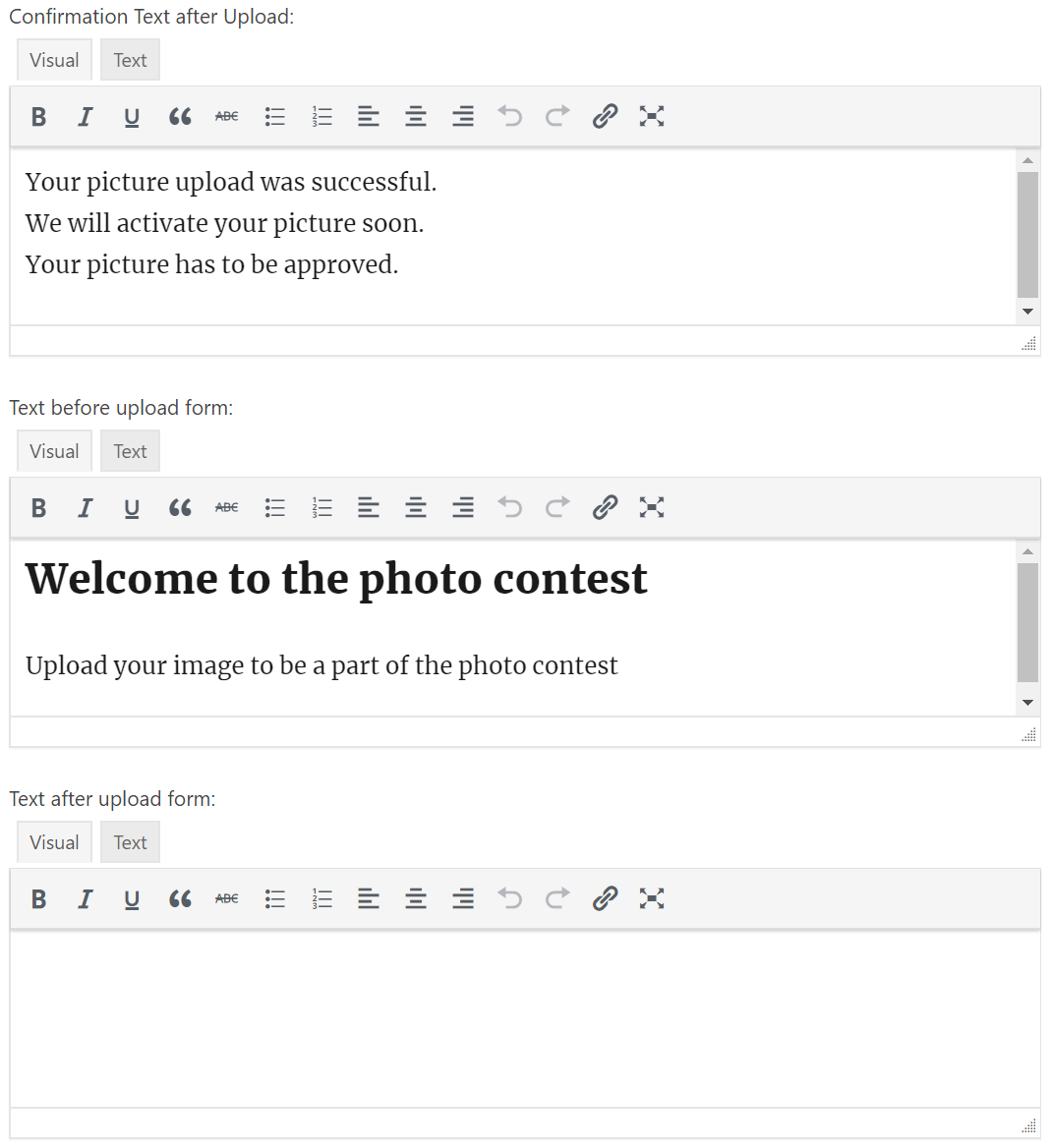
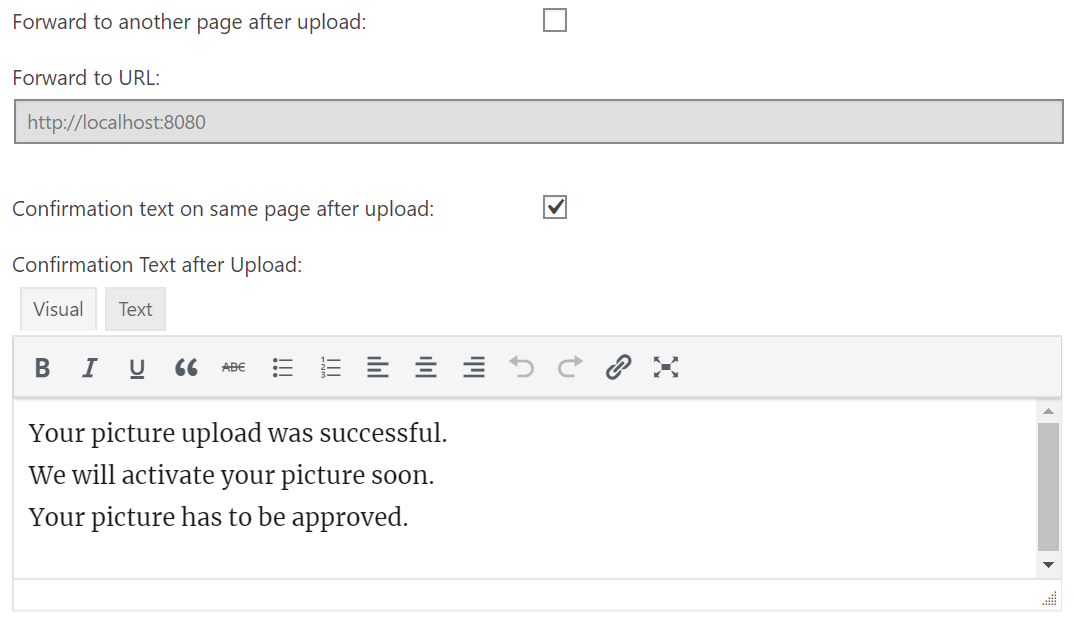
After frontend upload configuration (for upload form shortcode: cg_users_upload)
Forward to another page after upload and configure the URL
or
show confirmation text on same page after upload and configure that text
Registration options
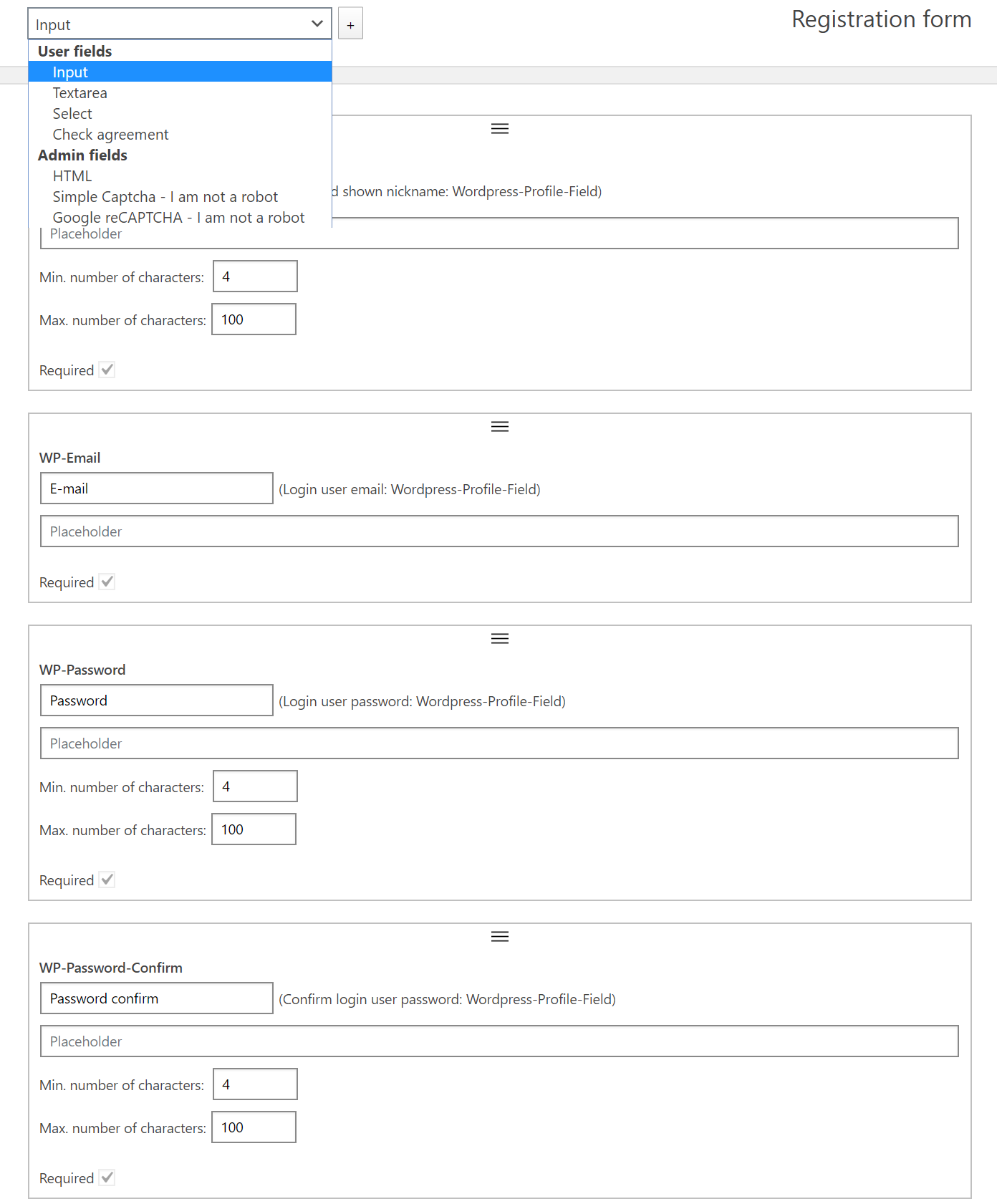
7 different field types can be selected + 4 default field types
- Input
- Textarea
- Select
- Check agreement (only PRO version)
- HTML (only PRO version)
- Simple captcha (I am not a robot)
- Google captcha (I am not a robot)
- WP-Nickname (always avaiable by default)
- WP-Email (always avaiable by default)
- WP-Password (always avaiable by default)
- WP-Password-Confirm (always avaiable by default)
Confirmation mail options
Go to
“Edit options” > “Registration options” > “Confirmation mail options”
You can define addressor, reply, subject and content
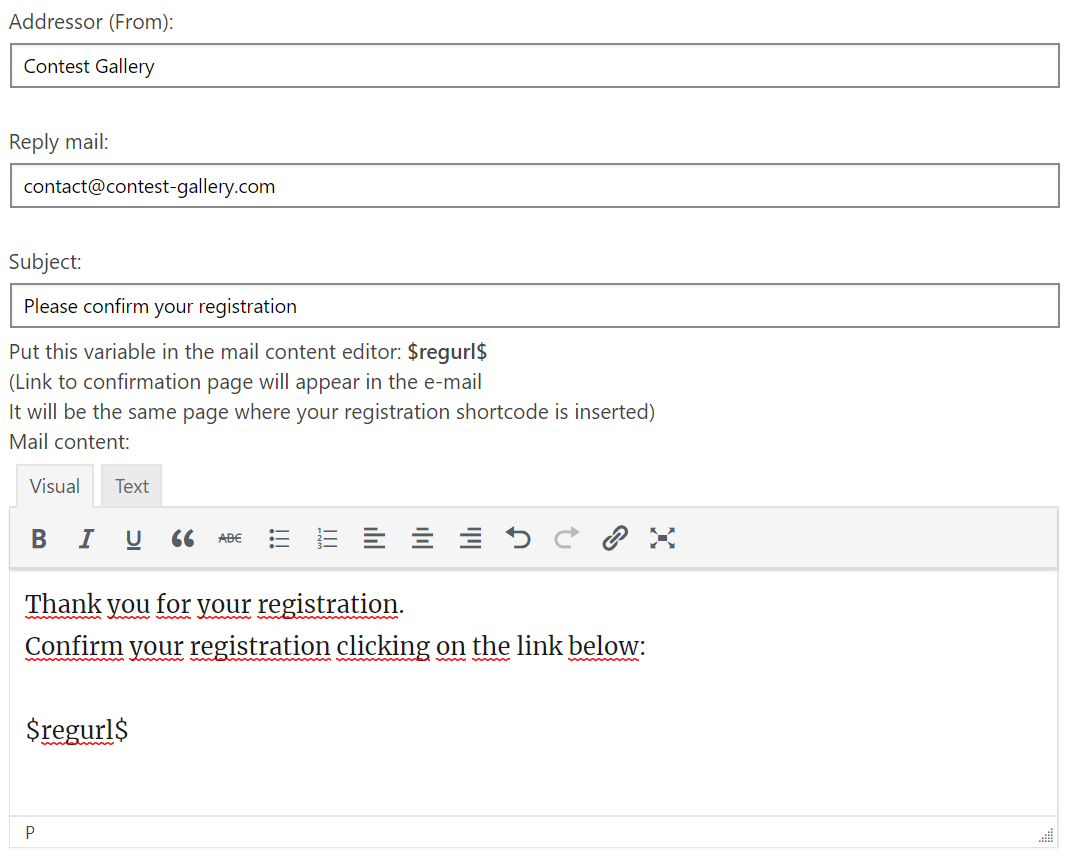
Display confirmation url as short text
The $regurl$ (confirmation url) can be also displayed as short text:
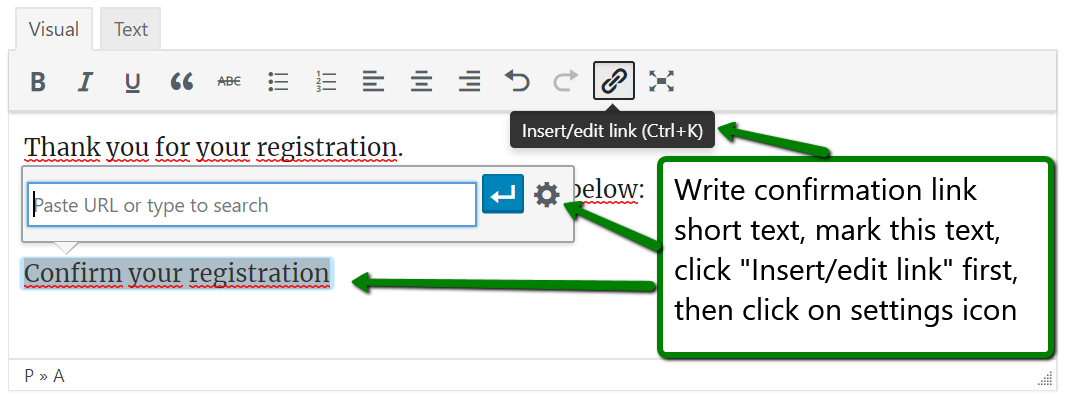
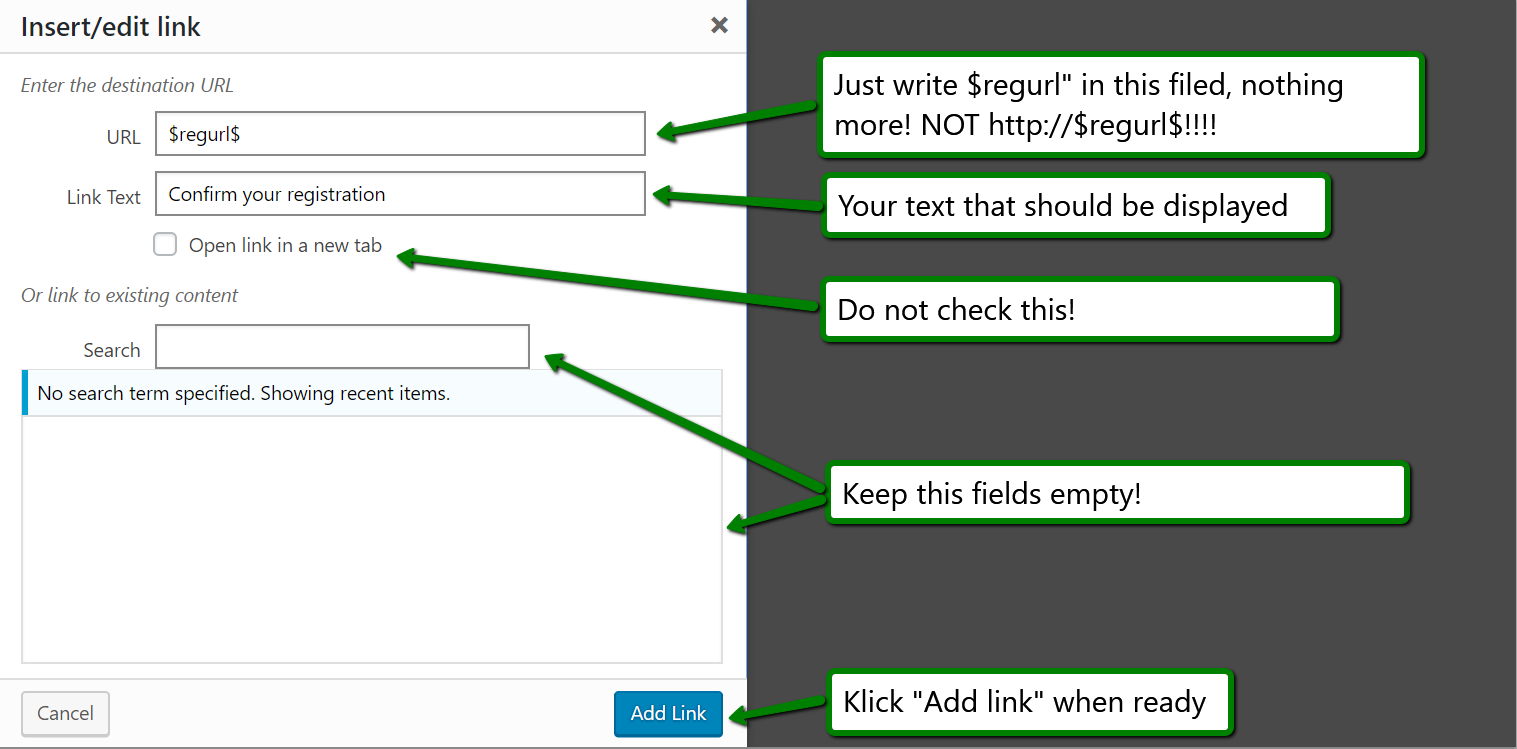
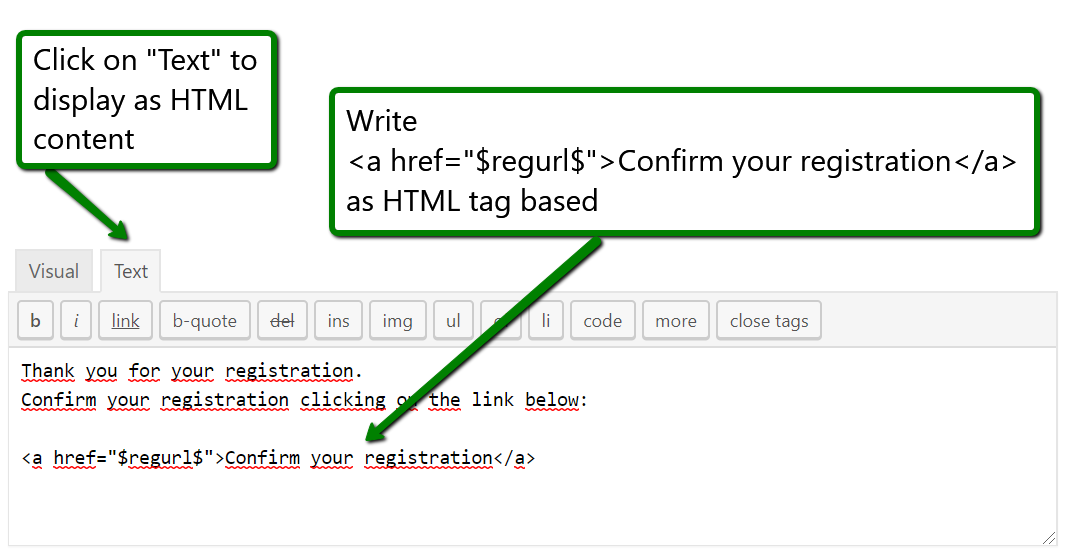
Or by adding as HTML tag like
<a href=”$regurl$”>Confirm your registration</a>
Shortcodes
How to use
Use following WordPress page/post blocks to insert shortcodes:
Shortcode
HTML
Classic
Shortcodes explained
Gallery
- cg_gallery
All images are visible
All configured options are active
Voting is possible
Can be added multiple times on a page with different id’s - cg_gallery_user
Display only uploaded images of logged in user
Voting is not possible
Show always all votes
“Hide until vote” and “Sho w only user votes” options are disabled
“Delete votes” is not possible
User can delete own images if they are activated
Can be added multiple times on a page with different id’s - cg_gallery_no_voting
All images are visible
Voting and sort by voting is not possible and not visible
Can be used as normal gallery without voting
Can be added multiple times on a page with different id’s
Upload
- cg_users_upload
Displays configured upload form
Can only be added only once on a page
Registration/Login
- cg_users_reg
Displays configured registration form
Can only be added only once on a page - cg_users_login
Displays login form
Can only be added only once on a page