
Contest Gallery documentation
Sell products and paid actions
Turn gallery entries into products and accept payments with PayPal or Stripe.
Choose a sale type
A physical product with quantity, shipping and tax configuration.
A digital product that provides the selected files after a completed payment.
A non-shipped product that can provide a service key after payment.
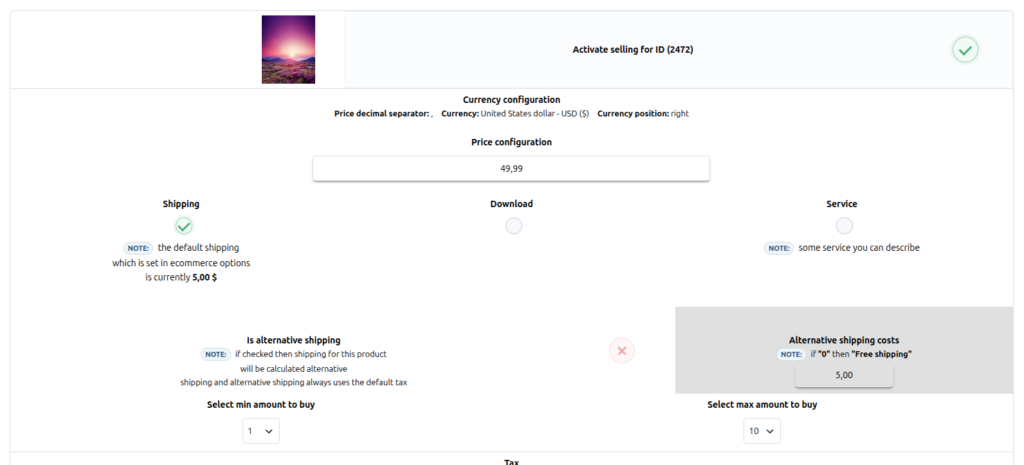
Configure the product
Set the price and type-specific options in Sales settings. Add a clear title and description to the entry so the ecommerce gallery explains exactly what the customer receives.
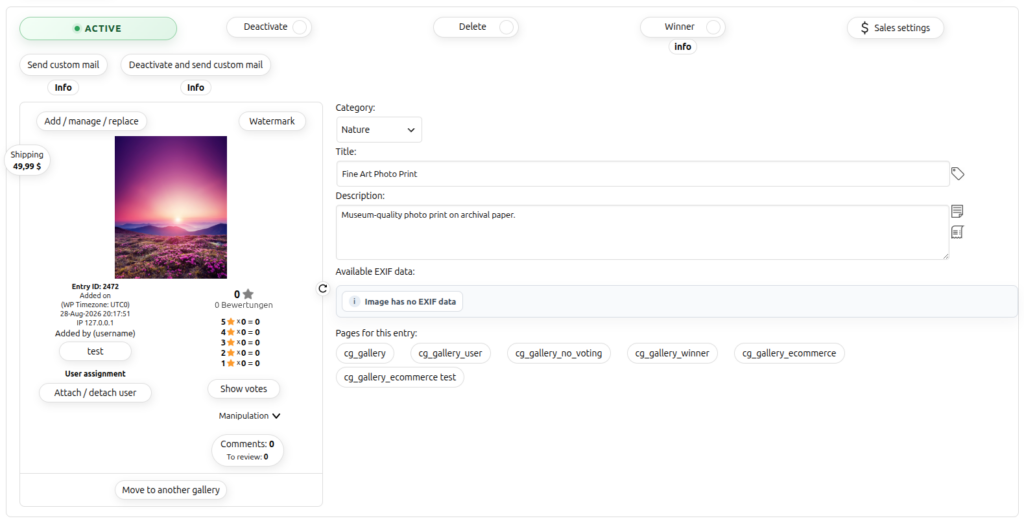
Connect a payment provider
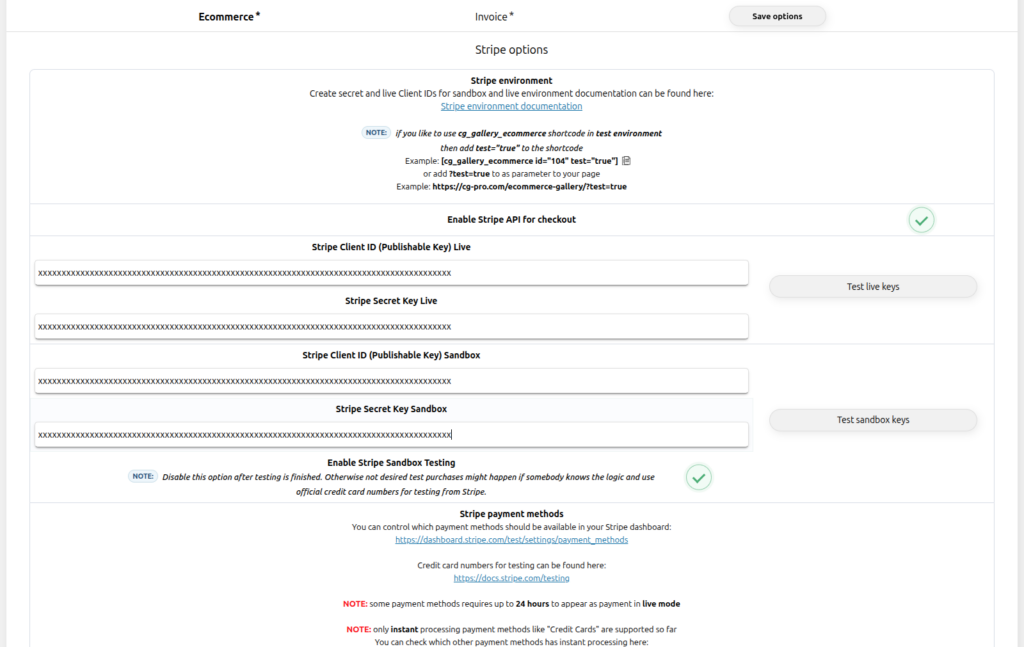
Enable PayPal, Stripe or both in Ecommerce options. Save and test sandbox credentials before entering live credentials. Secret keys remain server-side and must never appear in screenshots or public page content.
test="true". Complete an order with provider test credentials before enabling live checkout.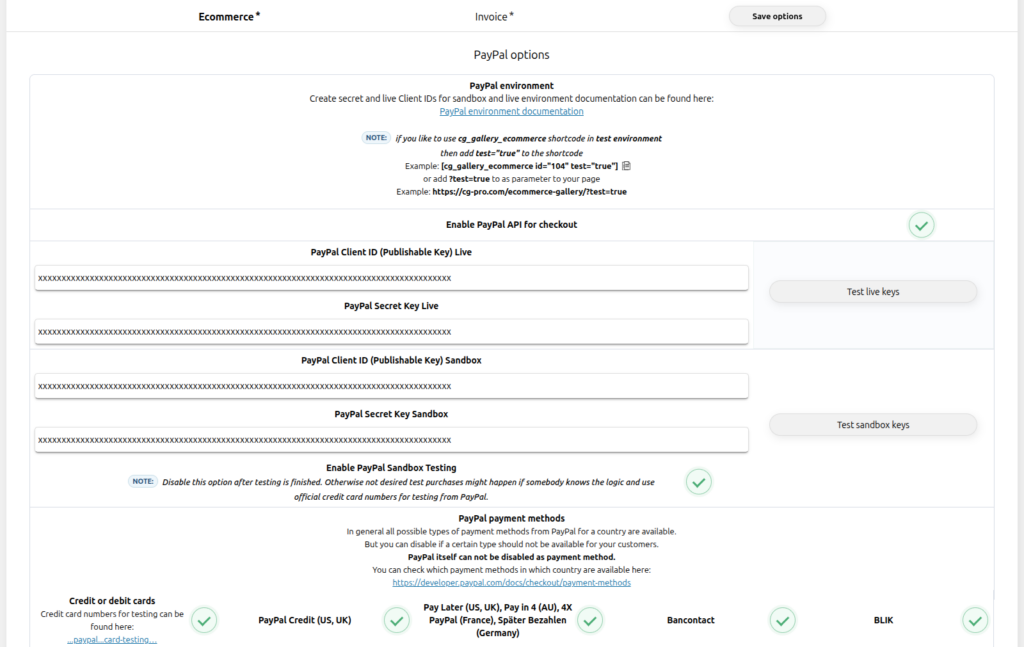
Publish the ecommerce gallery
[cg_gallery_ecommerce id="123"][cg_order_summary]The ecommerce gallery presents the products configured for sale. The cart remains available from the gallery controls and leads the customer into checkout.
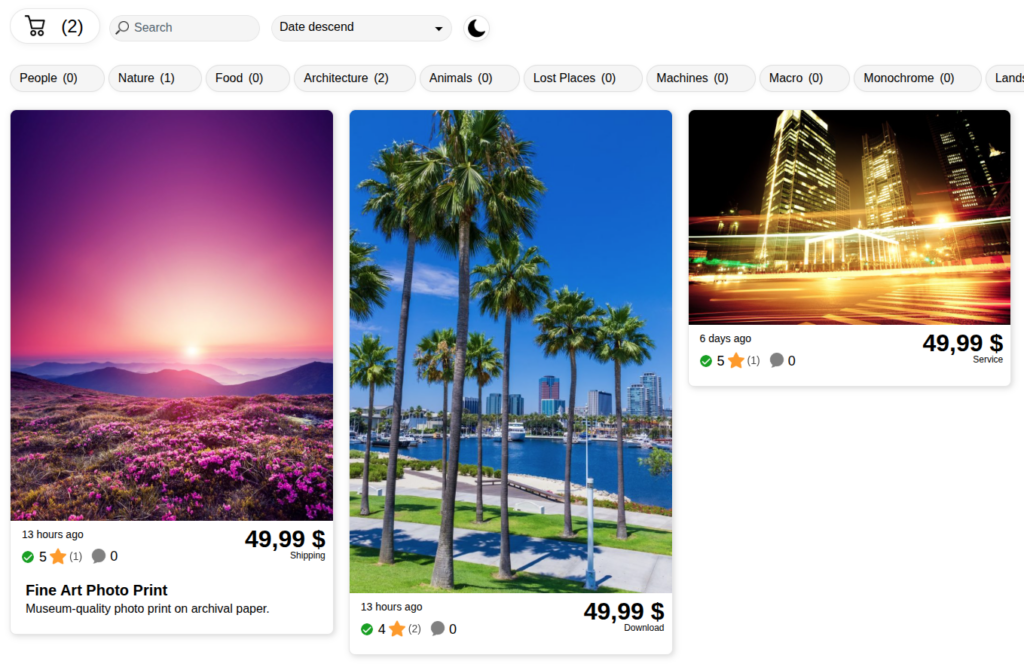
Review the cart and complete checkout
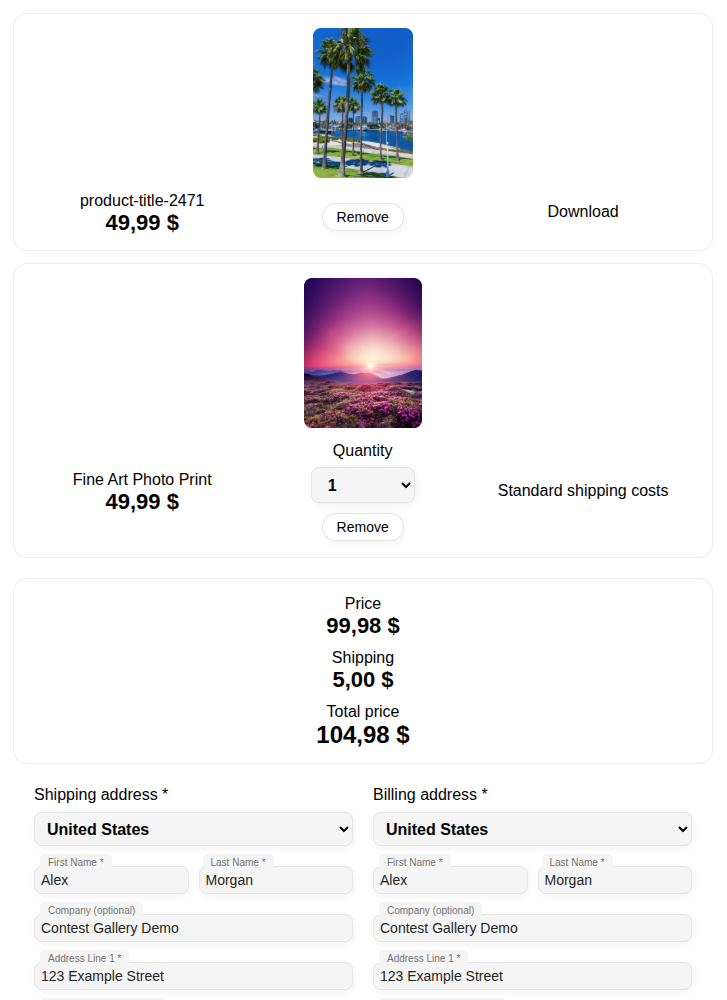
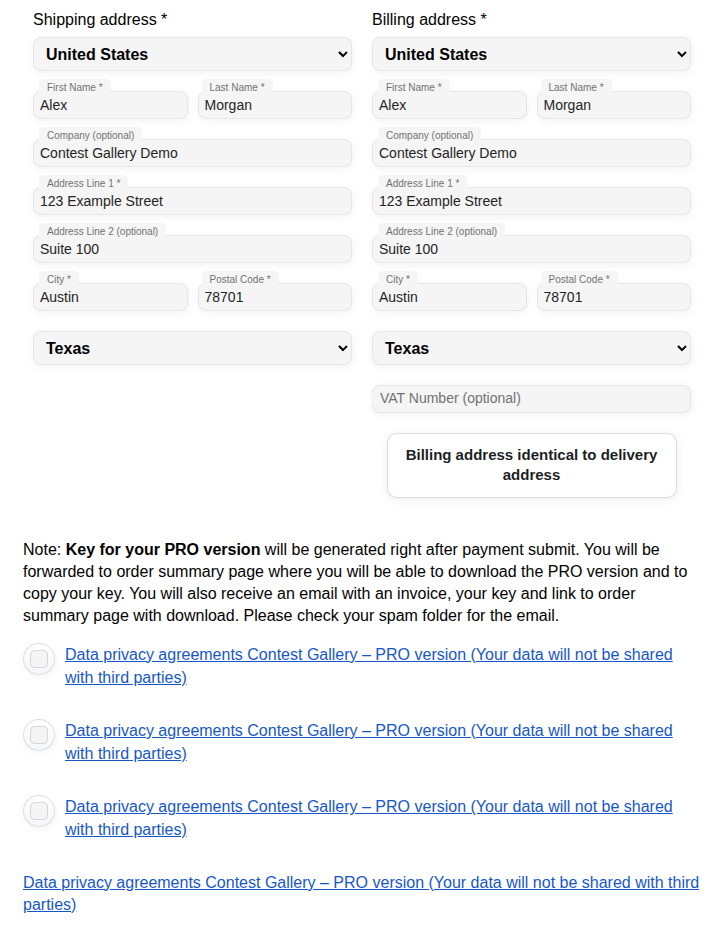
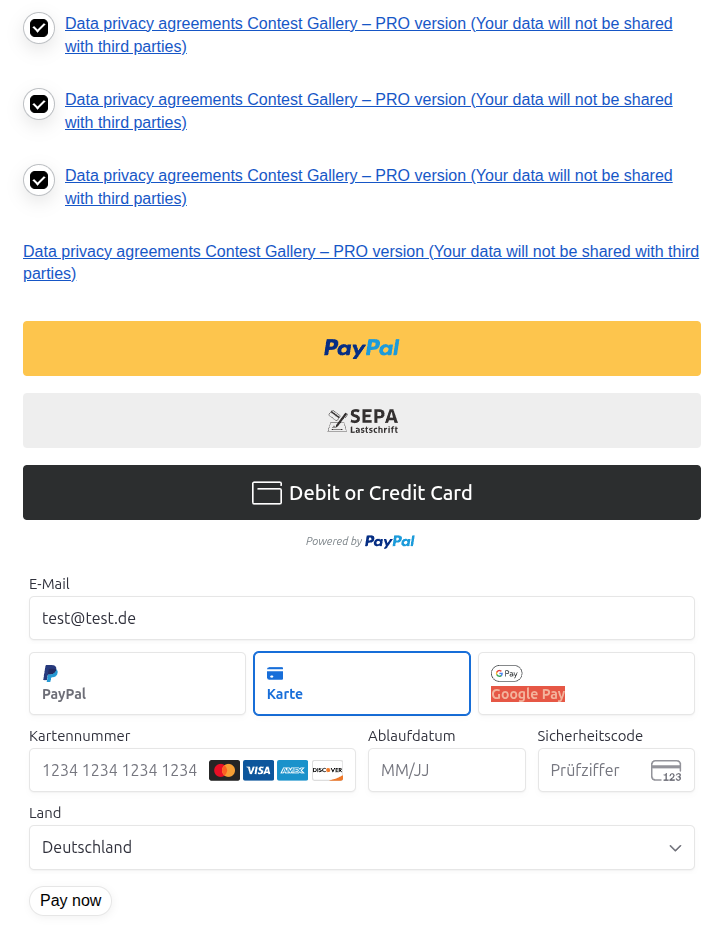
The customer reviews quantities and totals, enters the required addresses, accepts the configured privacy agreements and selects an available payment method.
Show the completed order
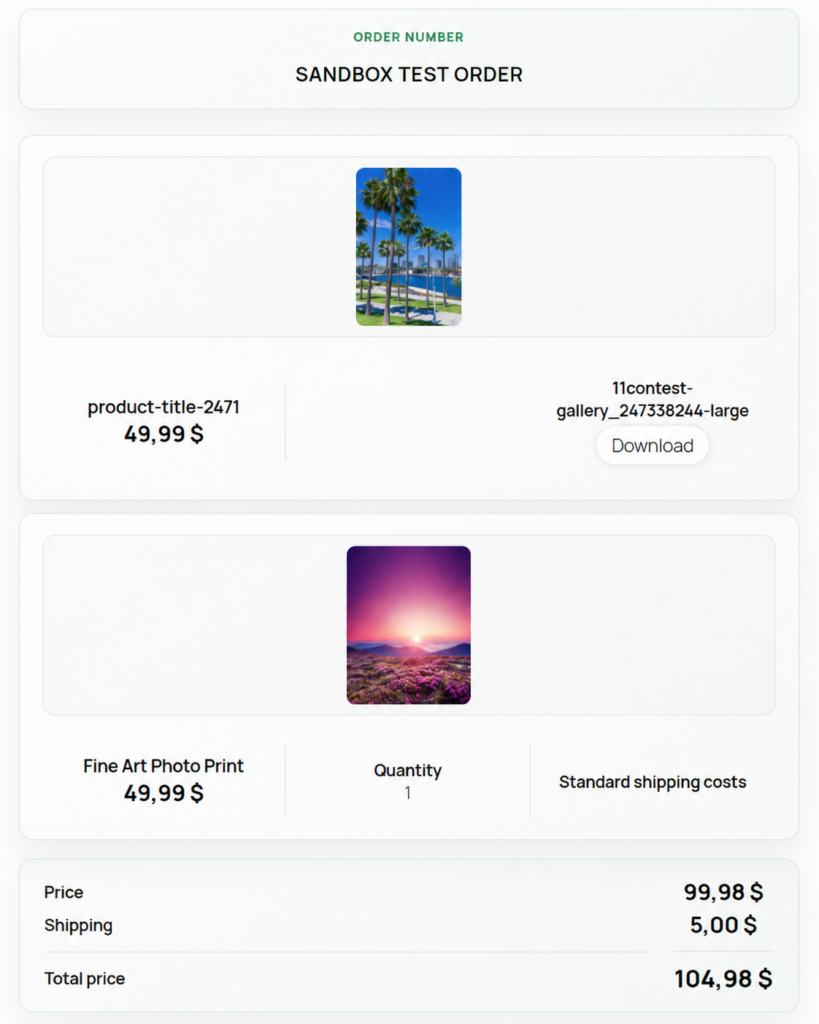
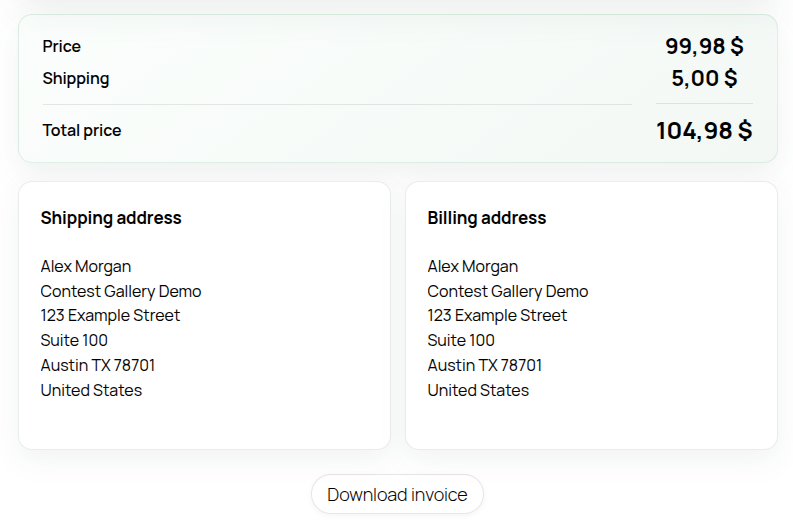
The order-summary page lists purchased items, available downloads, totals, addresses and the invoice. Keep the cg_order_summary page published so customers can return through the secure link in their order email.
Manage orders and paid actions
Inspect payment status, products, invoice data and provider responses in the backend order area.
Sell upload, voting or commenting credits where those actions are enabled for the gallery.
Test credits, consumption, email delivery, downloads and refunded-order behavior before enabling public checkout.