
Contest Gallery documentation
Gallery and entry views
Configure the gallery overview and choose whether an entry opens in a full-window view or on its own landing page.
Configure Gallery view options
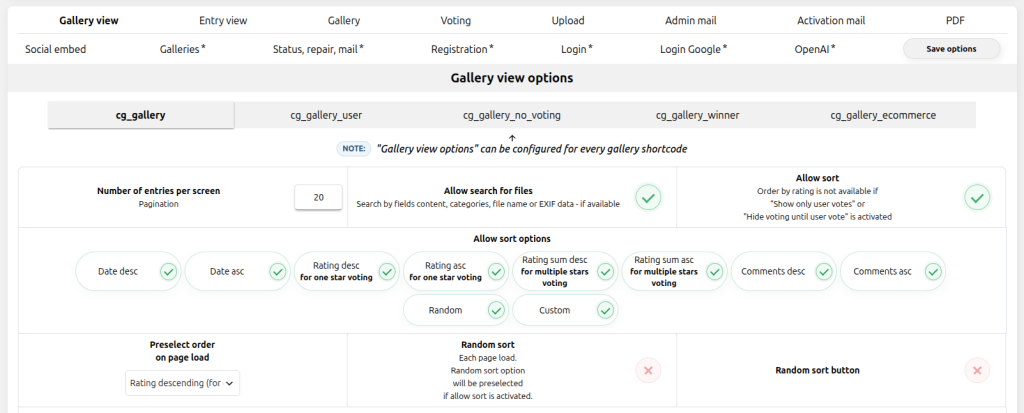
Gallery view options control the multi-entry overview visitors see before opening an entry. Use them to define pagination, search, sorting and the initial order.
Gallery view options are independent for every gallery shortcode type
Select the shortcode tab first, then configure that view. A change under one tab does not automatically change the other shortcode types.
cg_gallerycg_gallery_usercg_gallery_no_votingcg_gallery_winnercg_gallery_ecommerceSet the number of entries displayed on each screen.
Choose which discovery controls visitors can use in this shortcode view.
Preselect date, rating, comments, random or custom order as required.
Configure Entry view options
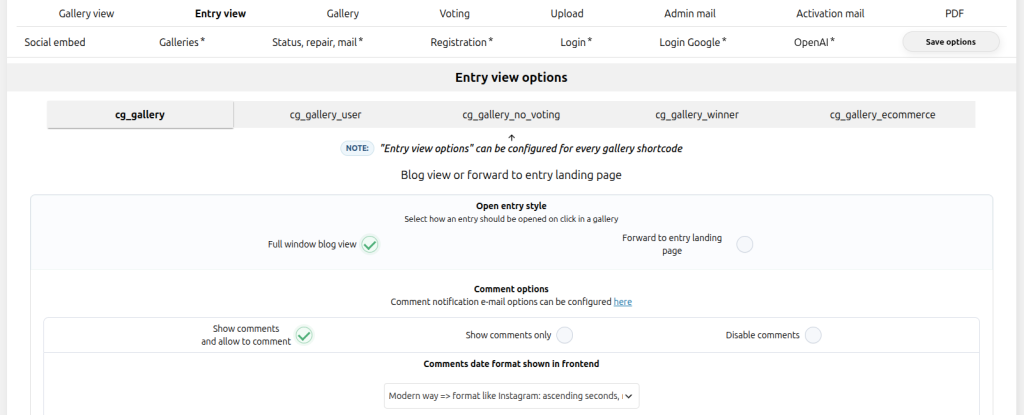
Entry view options determine what happens after a visitor selects an entry and how commenting behaves in that destination.
Entry view options are independent for every gallery shortcode type
Choose the destination and comment behavior separately for each shortcode tab. This allows a public gallery, user gallery, winner gallery and ecommerce gallery to open entries differently.
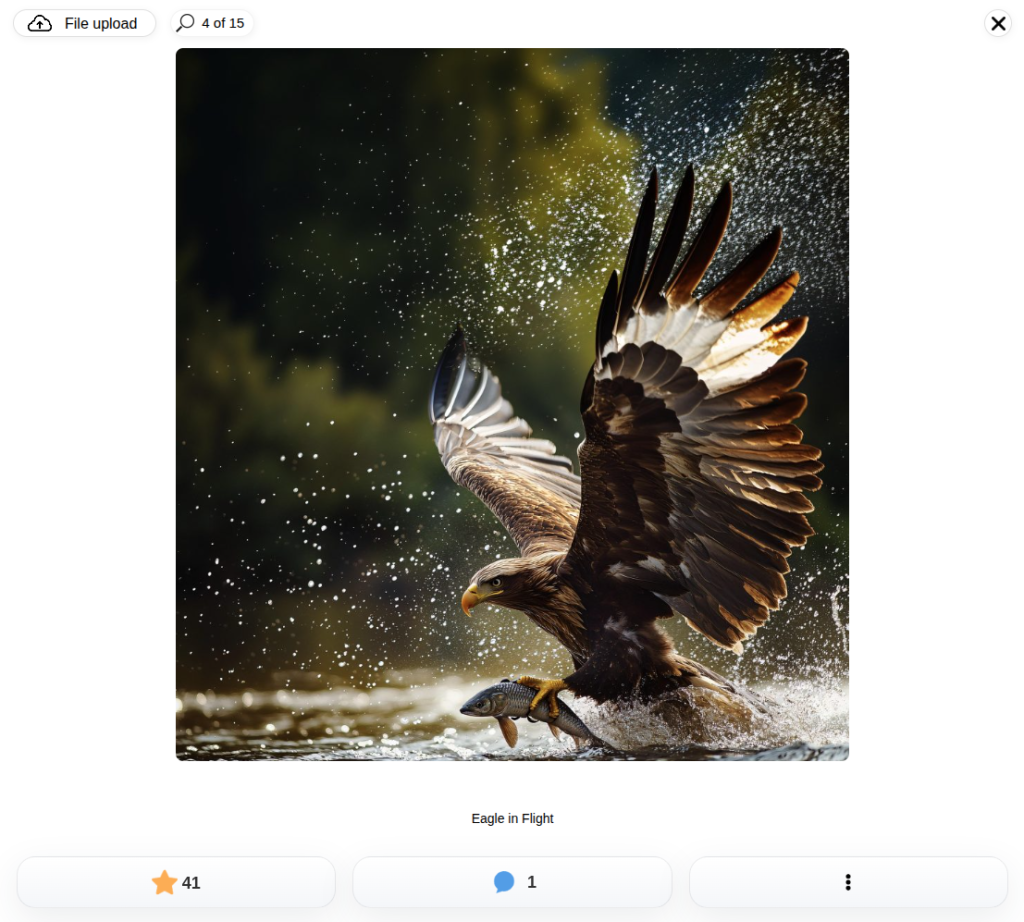
cg_gallerycg_gallery_usercg_gallery_no_votingcg_gallery_winnercg_gallery_ecommerceKeep visitors on the current page and open the selected entry in the responsive full-window interface.
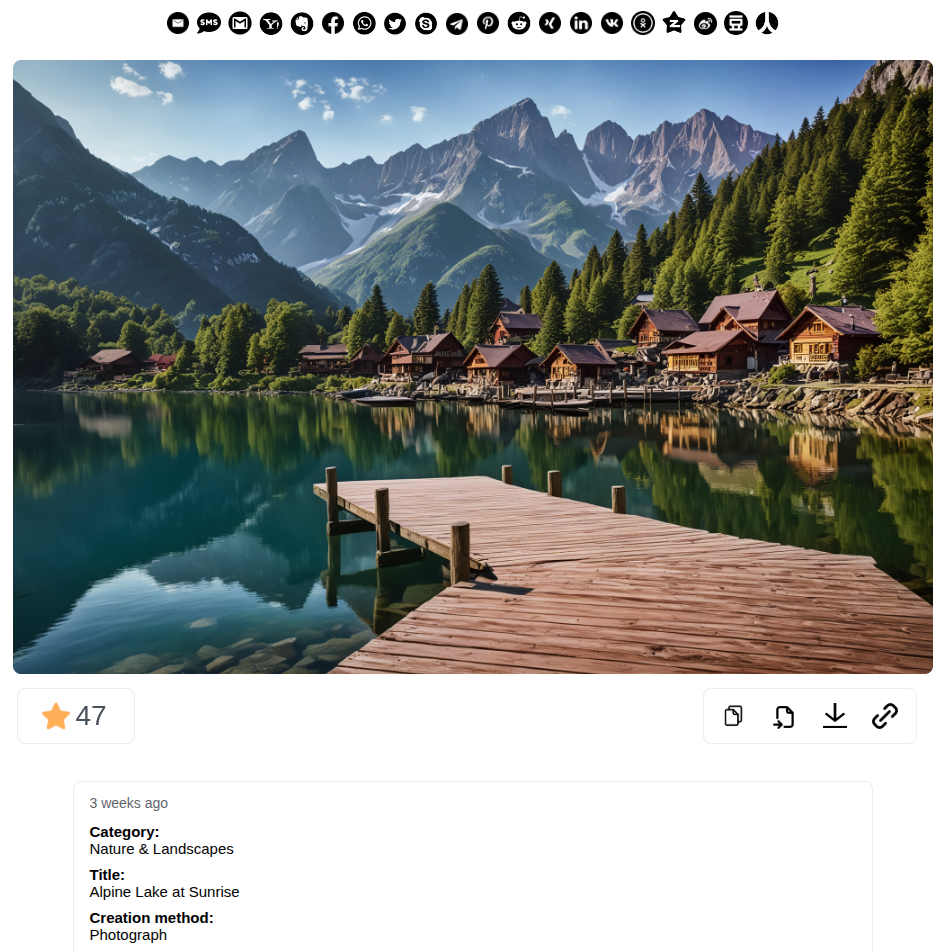
Forward visitors to the entry’s stable WordPress URL, optionally in a new browser tab.
Allow comments, show existing comments only or disable comments for the selected shortcode type.
Compare the two entry destinations
Both destinations display the entry clearly. The full-window view keeps the gallery context, while the landing page provides a dedicated URL for the entry.
Test responsive behavior
Verify the gallery and both entry destinations at 390, 768 and 1440 pixels. Long titles, gallery controls and entry action panels must remain readable without horizontal scrolling.