Contest Gallery member features
Documentation · Member profiles and community
Set up member profiles and your community
Create a member experience that connects sign-in, public profiles, contributions and personal content management.
Start with a compatible gallery
Use Contest Gallery 34.0.1 or later and a gallery created or copied with version 24 or later. Its generated gallery page must still exist. If the Member profile option is unavailable, copy the older gallery and configure the new copy.
These features use the website’s general registration form. Copying an old gallery does not migrate its historical gallery-specific registration fields or values.
1. Enable the member area
Open your gallery, choose Edit options → Gallery options and enable Member profile for the view you want to use. The normal gallery, gallery without voting and personal user gallery can be configured independently.
Place the appropriate shortcode on a WordPress page. Replace the example ID with your gallery’s ID.
No entries found
Buy now
Add to cart
100
😀😃😄😁😆😅😂🤣🙂🙃😊😇😍😘😜🤑🤗🤔😔🤢🤯🧐🥳🙆🖖👌🤏✌👍👎👊👏🤝🚀🛸🌙⭐⚡🔥❄🌍🌎🌏🏔🌋🏖🏝🍊🍄🍿🍣🍰🍕🍔🍟🛀💎🗺⏰🕹📚🐱🐪🐹🐤
1000
😀😃😄😁😆😅😂🤣🙂🙃😊😇😍😘😜🤑🤗🤔😔🤢🤯🧐🥳🙆🖖👌🤏✌👍👎👊👏🤝🚀🛸🌙⭐⚡🔥❄🌍🌎🌏🏔🌋🏖🏝🍊🍄🍿🍣🍰🍕🍔🍟🛀💎🗺⏰🕹📚🐱🐪🐹🐤
No entries found
Buy now
Add to cart
100
😀😃😄😁😆😅😂🤣🙂🙃😊😇😍😘😜🤑🤗🤔😔🤢🤯🧐🥳🙆🖖👌🤏✌👍👎👊👏🤝🚀🛸🌙⭐⚡🔥❄🌍🌎🌏🏔🌋🏖🏝🍊🍄🍿🍣🍰🍕🍔🍟🛀💎🗺⏰🕹📚🐱🐪🐹🐤
1000
😀😃😄😁😆😅😂🤣🙂🙃😊😇😍😘😜🤑🤗🤔😔🤢🤯🧐🥳🙆🖖👌🤏✌👍👎👊👏🤝🚀🛸🌙⭐⚡🔥❄🌍🌎🌏🏔🌋🏖🏝🍊🍄🍿🍣🍰🍕🍔🍟🛀💎🗺⏰🕹📚🐱🐪🐹🐤
The member area uses email PIN sign-in. Google Sign-In is also available when configured. Upload access is a separate setting.
2. Configure sign-in and uploads
Under Upload options, select Check if is registered user when contributions should belong to signed-in members. Enable the in-gallery upload form for the intended view.
For a standalone upload form, enable Offer sign-in before uploading and use
Check your registration email settings and test that a PIN email arrives. For Google authentication, follow the Google Sign-In setup guide.
3. Choose your profile fields
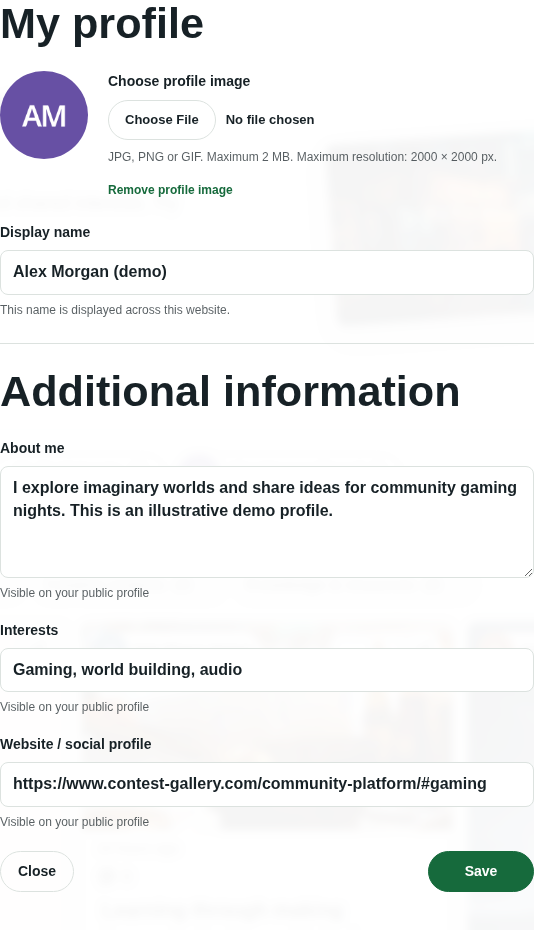
Open the general Registration form editor. Add optional fields such as About me, Interests and Website / social profile. Enable Show in public profile on the fields that should be public, then save the form.
Text, URL, textarea and supported selection fields can be made public. Availability of individual field types depends on the edition. Registration/profile URL fields are available in FREE and PRO.
Public fields display a visibility hint in the registration form and profile editor. Empty values are omitted from the public profile. Hiding a field from the registration form and publishing its stored value are separate settings.
Do not enable public display on an existing field unless its information is intended to be public. New optional fields let members decide what to add.
4. Check who can edit profile information
Signed-in members can change their display name and profile image through the member area. Additional fields follow the profile-editing role settings. Administrators and the current Contest Gallery User role have access automatically. Select any other roles that should edit these fields under the registration options.
Changing a display name does not change the login name or email address.
5. Decide how content is published
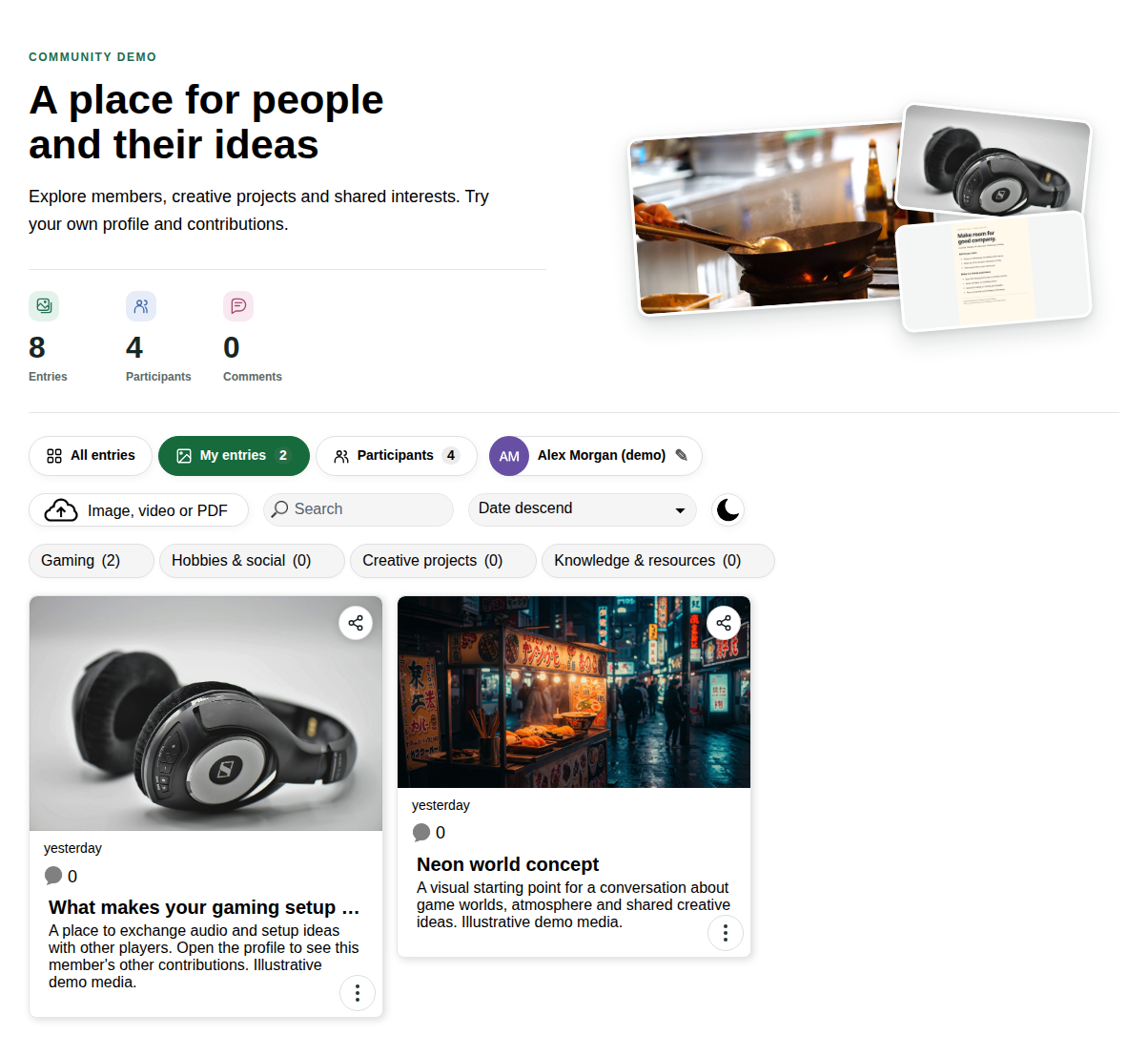
Choose whether frontend uploads are activated automatically or reviewed first. With manual activation, the owner can see the unpublished submission privately under My entries. Other visitors cannot see it through the public gallery or participant profile.
Enable comments if members should discuss contributions and configure comment review as needed. A gallery without voting is useful for a community with no ranking or competition.
6. Set file replacement rules
Under Gallery options → cg_gallery → Member profile, configure Allow members to replace images. The rules also apply to the gallery’s personal views.
- Allow replacement without a time limit.
- Allow it for a duration after the original upload.
- Allow it until a specific date and time.
- Disable replacement.
The additional option Only allow replacement before the first vote is useful for contests. Upload intervals and restrictions on entries offered for sale still apply. Replacing a published file in a gallery with manual activation sends the entry back for approval.
7. Configure messages and friendships
Open Edit options → Member notifications (general). Contact and friendships controls private messages and friendship requests across this WordPress website. It is enabled by default. Turning it off preserves existing conversations and friendships.
Use the administrator’s user management to open a member’s message overview and manage their ability to send new messages and friendship requests. Public profile fields and gallery publication settings remain separate controls.
8. Choose your member notification emails
The New private message email and New friend request email sections each have their own Send email notifications option. Both are disabled by default. Configure the sender name, From and Reply-To addresses for your website.
PRO lets you edit the subject and HTML content. Available placeholders include $recipient$, $sender$, $site$ and $url$. Add $message_preview$ to a message template only when a short preview should be included in the email.
Enabling notifications does not send emails for old messages or requests. Check delivery with your own test members after choosing the final templates.
9. Try the complete experience
- Open the page as a guest and check that the public content is visible as intended.
- Sign in with a separate member account.
- Save a profile image, display name and optional public information.
- Submit one entry and open My entries.
- Check the unpublished status if moderation is enabled.
- Publish the entry as the operator, then confirm that the member appears under Participants.
- Open the public profile and check its public fields and accessible contributions. Use View gallery entries to check the separate gallery-specific view.
- Check Messages and Friends with two of your own test accounts, then review the notification and blocking settings you intend to offer.
Common questions
Why is a member missing from Participants?
The participant list is built from published entries that are visible in the current gallery. An account without such an entry will not appear yet.
Why is a profile field missing?
Check that the field is enabled for public display and has a nonempty value. Participant cards show a short field preview. Open the complete profile to see all public fields.
Why can a member not edit additional fields?
Check the allowed profile-editing roles in the registration options. Profile field visibility and permission to edit are separate controls.
Why can a member not replace a file?
Check the replacement mode, deadline, vote restriction, upload interval and whether the entry is offered for sale. The replacement file must also meet the gallery’s upload rules.
Can members send private messages?
Yes. Enable Contact and friendships under Member notifications (general). Signed-in members can then use Messages and Friends. Public entry comments remain a separate feature.