
Contest Gallery guides
Paid frontend submissions
Accept paid gallery uploads in WordPress
Give contributors a clear credit purchase and submission journey while keeping your gallery rules.
Offer paid submissions with upload credits
Upload credits let a signed-in visitor pay for entries before submitting them to your gallery. This suits a project with a clearly defined entry offer, such as a curated showcase or a paid submission round.
One upload credit covers one gallery entry, including the additional files that belong to that entry. File format, upload size, timing and publication settings still determine what the visitor may submit.
Prepare a compatible gallery
Paid Actions supports galleries created or copied with Contest Gallery 22.0.0 or later. Copy an older gallery when the backend shows the compatibility notice. Configure the new copy before using paid submissions.
Use the normal gallery shortcode for this workflow, for example [cg_gallery id="123"]. Replace 123 with your gallery ID. An ecommerce gallery shortcode is not required for upload credits.
If profiles and the full member area are also part of the project, use a gallery with the modern member page structure from version 24 or later.
Set up paid gallery uploads
- Open the gallery’s Earning options and choose Pay for uploads.
- Enter the gross price per upload credit and save the settings.
- Review the card’s status. Live charging requires PRO and a complete live payment configuration.
- Configure the gallery’s upload form, allowed files and submission limits.
- Choose automatic publication or manual review for new entries.
- Use the private preview to check the credit selector, sign-in and upload experience without a real payment.
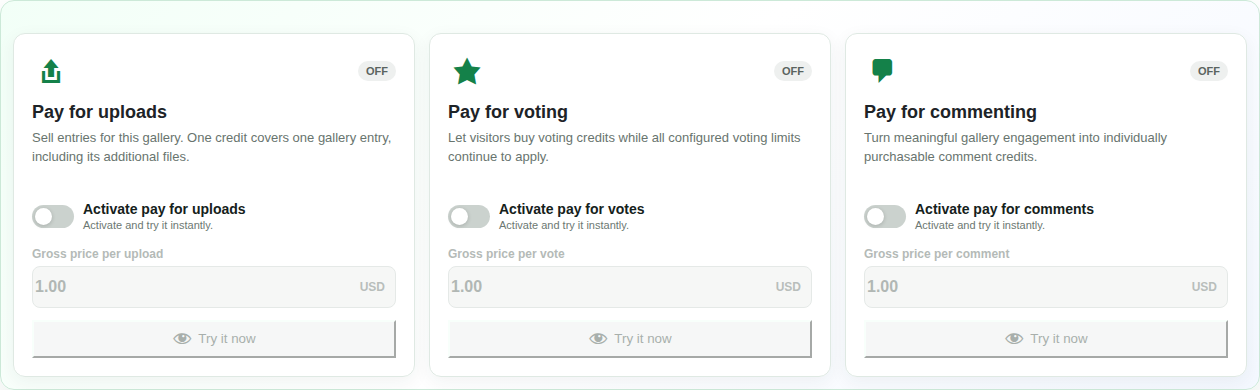
The PayPal and Stripe configuration belongs to the website’s ecommerce settings. Follow the PayPal guide or Stripe guide for the provider you want to use.
What the contributor sees
The gallery explains that upload credits are required. The contributor signs in, chooses a quantity and follows checkout. Once the payment is confirmed, available credits are associated with that WordPress account.
The contributor then submits an entry through the gallery’s upload flow. A manually reviewed entry stays private to its owner in My entries until it is published. Payment does not bypass your moderation rules.
Choose local or shared credits
Keep credits local when a purchase should apply to one gallery. Use shared credits when participating galleries should accept the same action balance. Upload credits remain separate from vote and comment credits.
Choose the scope before promoting the offer. A later sharing change does not convert earlier local purchases into shared credits.
Paid upload questions
Can I test this in FREE?
Yes. The private preview uses test credits and saves marked test uploads. It does not charge a visitor. Real upload-credit sales require PRO.
Is a paid upload published immediately?
Publication follows the gallery’s activation rules. Manual review keeps the entry unpublished until the operator approves it.
What is the difference from upload-slot products?
Upload credits are the current Paid Actions workflow for regular galleries. Older ecommerce upload-slot products are a separate legacy model. New galleries from version 33 use the Paid Actions approach instead of creating new legacy upload-slot products.
Connect submissions with your gallery’s purpose
Explain what a contributor is paying for and how entries are reviewed. Then make the route back to their own entries and profile easy to find.