
Contest Gallery guides
Photo products and downloads
Sell photos from your WordPress gallery
Present the image, explain the offer and connect it to a clear purchase and delivery workflow.
Choose the photo product you want to sell
A visitor may want a print for their wall or a digital file for their project. Describe the offer clearly on the gallery entry so the buyer understands the product, price and delivery.
For a physical product, choose the shipping sale type and arrange fulfilment yourself. For a digital file, use the download sale type in PRO and configure the files the completed order should provide.
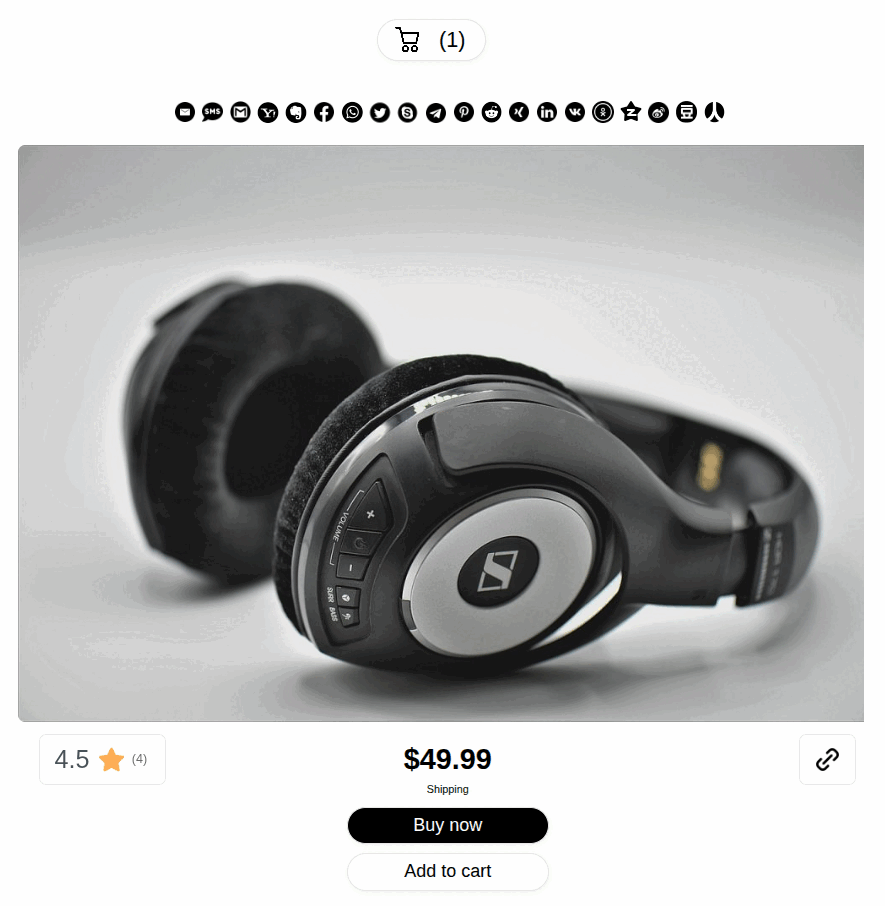
Configure a photo sale
- Add the image and descriptive entry information to the gallery.
- Open the entry’s selling configuration and select Shipping or Download.
- Set the product price, currency and the applicable shipping or tax options.
- For a download, choose the files and post-purchase delivery settings.
- Review the visible title, description and image presentation.
- Publish the ecommerce gallery using
[cg_gallery_ecommerce id="123"]with your actual gallery ID.
A preview image helps people browse. State explicitly whether the purchase is a physical product or a download. Include the product details the buyer needs to make a decision.
Connect payment and delivery
Configure PayPal or Stripe in the ecommerce options. The visitor can open a product, add it to the cart and complete the supported checkout. The order workflow provides the configured purchase result after payment confirmation.
FREE and PRO support shipping products. PRO adds download and service sale types. The plugin’s product workflow is explained in the ecommerce setup guide.
Present images without confusing preview and delivery
Real watermarks can protect the public gallery images while the original files remain in protected storage. Use a public preview that represents what you sell, then check the download configuration separately.
Do not rely on a decorative overlay as your delivery rule. Review which file the purchased product actually supplies and the settings for access after payment.
Keep contributor profiles and selling roles clear
A public profile can show the person who contributed the image. The website operator still configures products, receives payments through the site’s configured provider and handles fulfilment.
This creates a photo-selling gallery on your WordPress website. It does not automatically turn each member into a separate seller with their own payment account or payouts.
Selling photos: common questions
Can I sell photo prints in FREE?
Yes. Use the shipping product workflow in FREE or PRO. Printing and physical fulfilment are handled by the operator.
Can visitors buy a digital photo download?
Yes. The download sale type is available in PRO. Configure the delivered files and test the intended post-purchase workflow.
Do I need Paid Actions to sell an image file?
No. Product sales and action credits are separate models. Use a download product to sell the file. Use upload credits to charge for submitting an entry.
Can I also offer a service?
PRO includes a service sale type. Describe the service and configure its order workflow separately from a physical product or file download.
Choose the right model for your photo project
Explore all monetization optionsCharge for photo submissions