Create a gallery
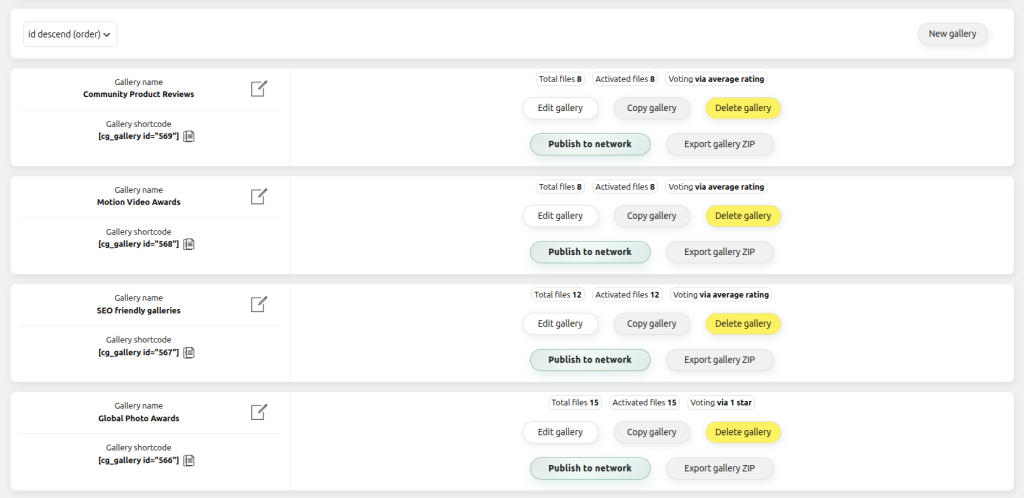
Select Create new gallery. The new gallery receives its own ID and default configuration.

Contest Gallery documentation
Create a gallery, add entries and publish a responsive contest on a WordPress page.
Install and activate Contest Gallery, then open Contest Gallery in the WordPress administration. A gallery stores entries, form fields, display settings and voting rules under one gallery ID.
Select Create new gallery. The new gallery receives its own ID and default configuration.
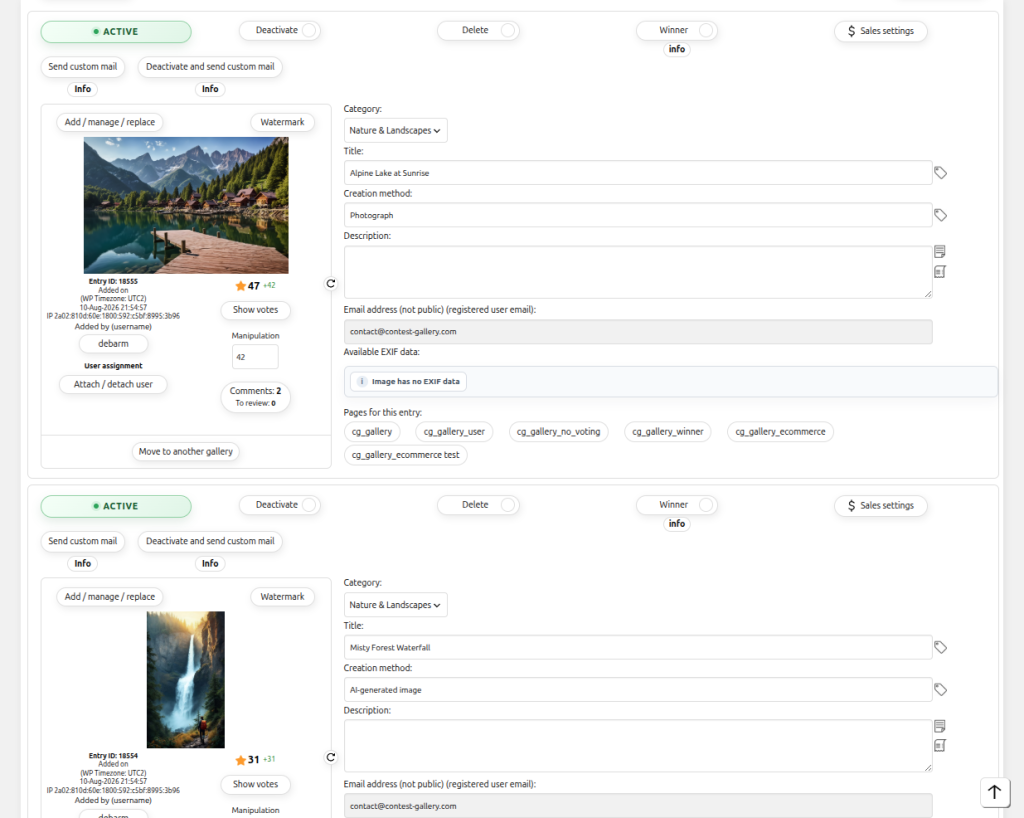
Use the backend file upload to add a few images or supported media files. Add clear titles and categories so sorting and search can be tested.
Confirm that each entry is active. Inactive entries remain available in the backend but are not shown publicly.
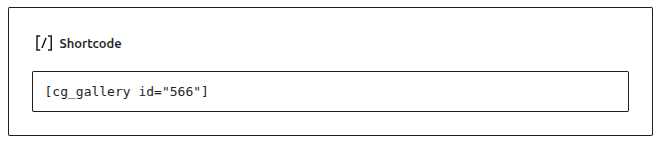
Open the shortcode area and copy the shortcode for the view you need, normally [cg_gallery id="123"].
Add a Shortcode block, paste the shortcode and update the page. Open the public page in a second browser session.

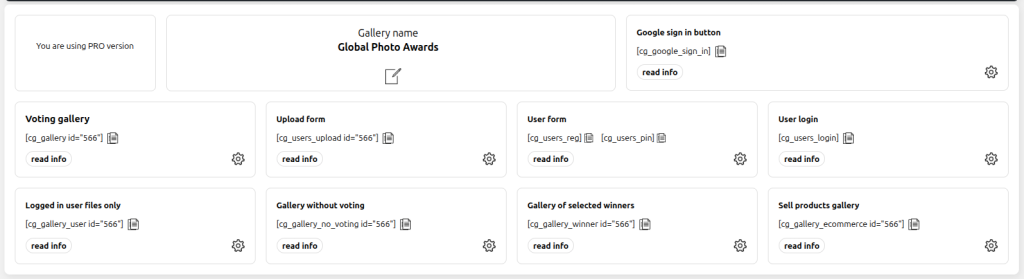
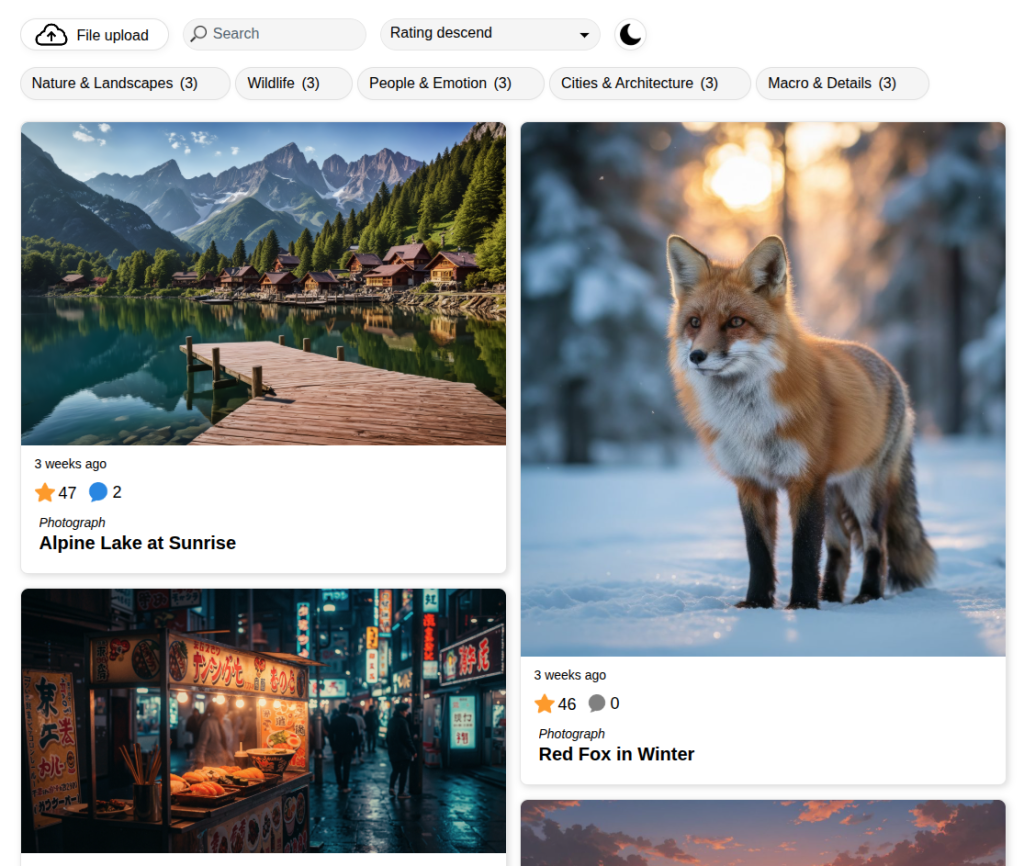
Check the gallery at desktop and mobile width. Confirm that entries load, the intended controls appear and clicking an entry opens the configured view.