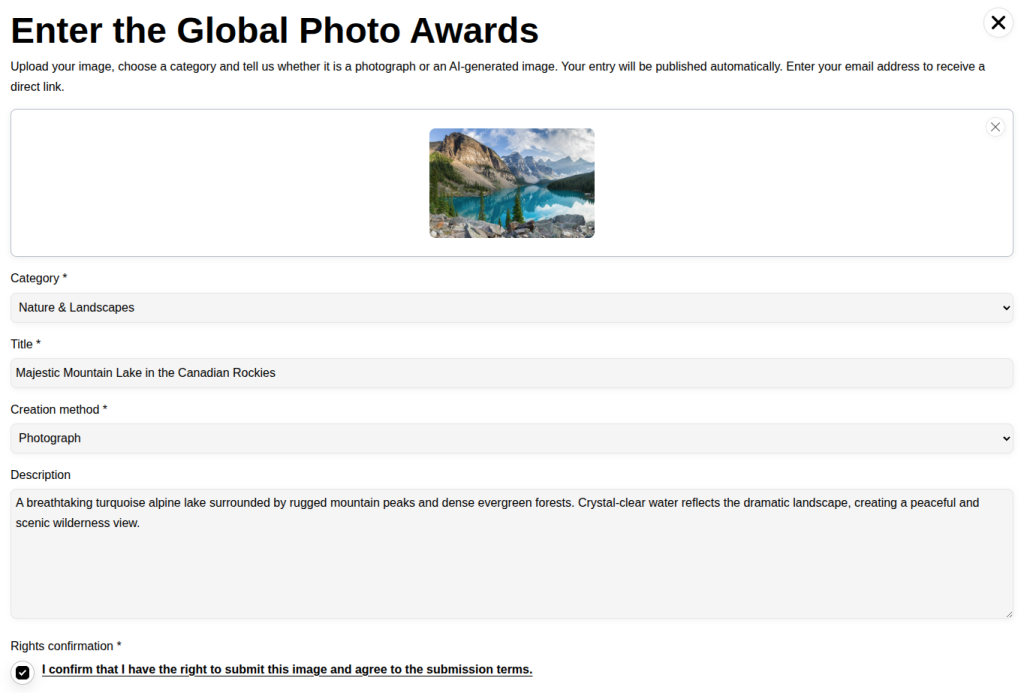
Add the file field
Define the supported upload and file-size rules for the gallery.

Contest Gallery documentation
Build a clear participation form and decide when submitted entries become visible.
Open the gallery contact form editor and add only the fields required for participation. A concise form normally needs the file, category, title, description and email address.
Define the supported upload and file-size rules for the gallery.
Use clear labels for category, title and description. Mark only genuinely required fields as required.
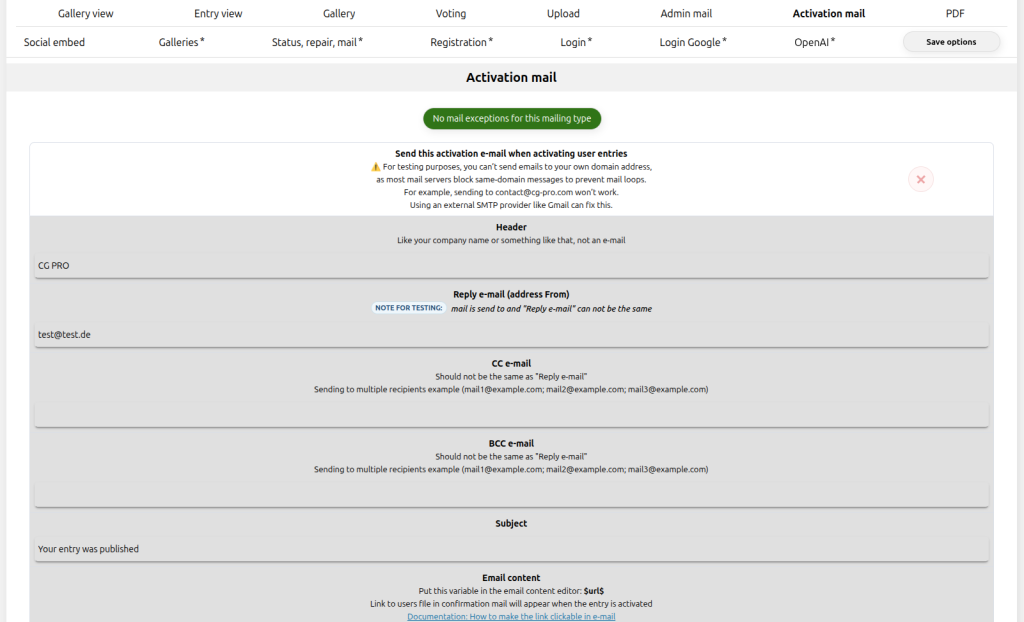
Collect an email address when participants should receive activation or confirmation messages.
Check field order, labels and validation before publishing the upload shortcode.
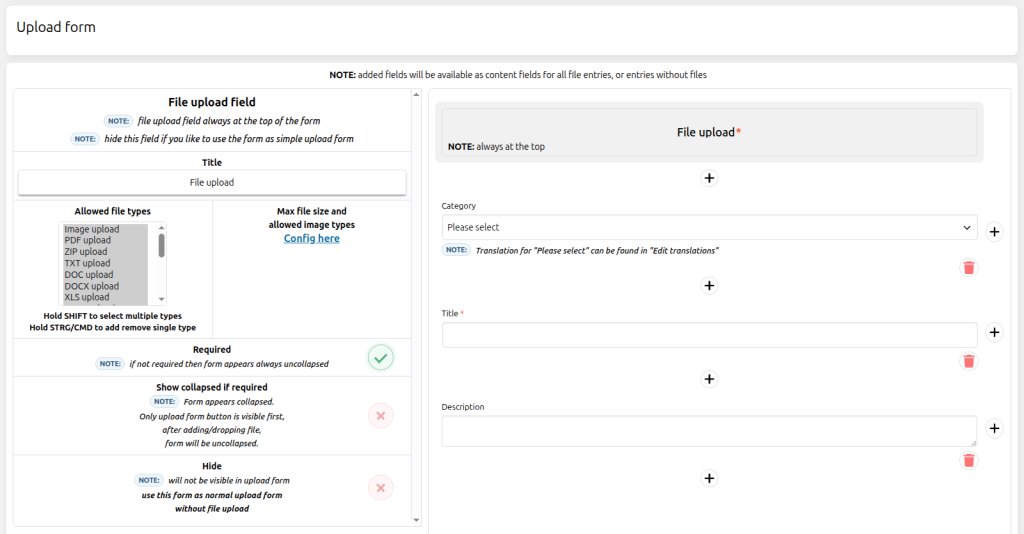
Automatic activation publishes a valid entry immediately. Manual activation keeps the entry in the backend until an administrator reviews it. The public confirmation text must describe the selected workflow accurately.
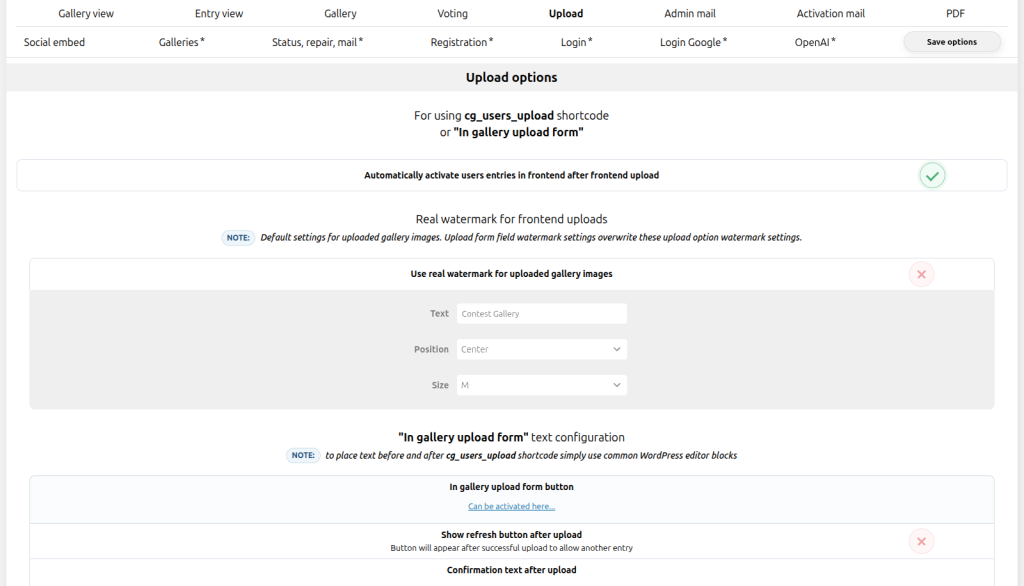
Use the available mail variables for entry title, gallery information and the public entry URL. Send a real test through the frontend and confirm the sender, subject, link and mobile rendering.
Learn how to display $url$ as clickable text →
Submit a sample entry from a private browser window. Verify progress feedback, validation, confirmation text, backend state and both administrator and participant emails.