Select the correct project
Open Google Cloud and select an existing project or create a dedicated project for this WordPress site.

Contest Gallery documentation
Create a Google OAuth web client, authorize the exact WordPress origin and connect the Client ID to Contest Gallery.
Use Google Auth Platform inside the Google Cloud project that will own the sign-in configuration. Keep a separate project and Client ID for testing if the production application is already in use.
https://www.example.com.Open Google Cloud and select an existing project or create a dedicated project for this WordPress site.
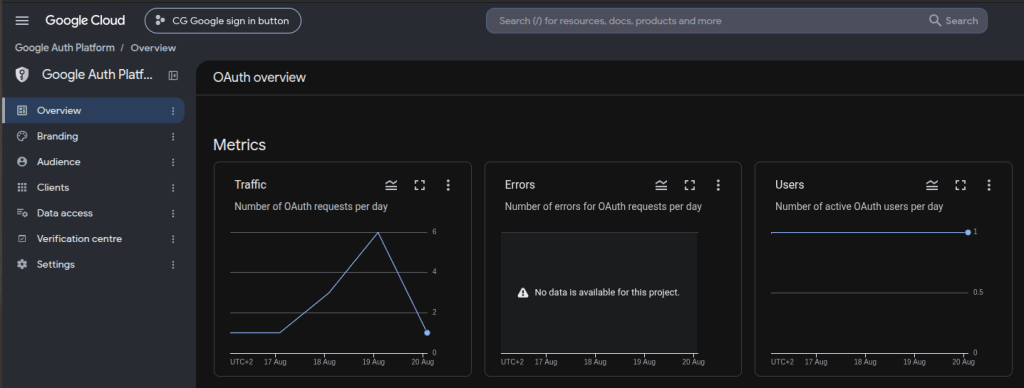
Use the Auth Platform navigation for Branding, Audience, Clients and Data Access.
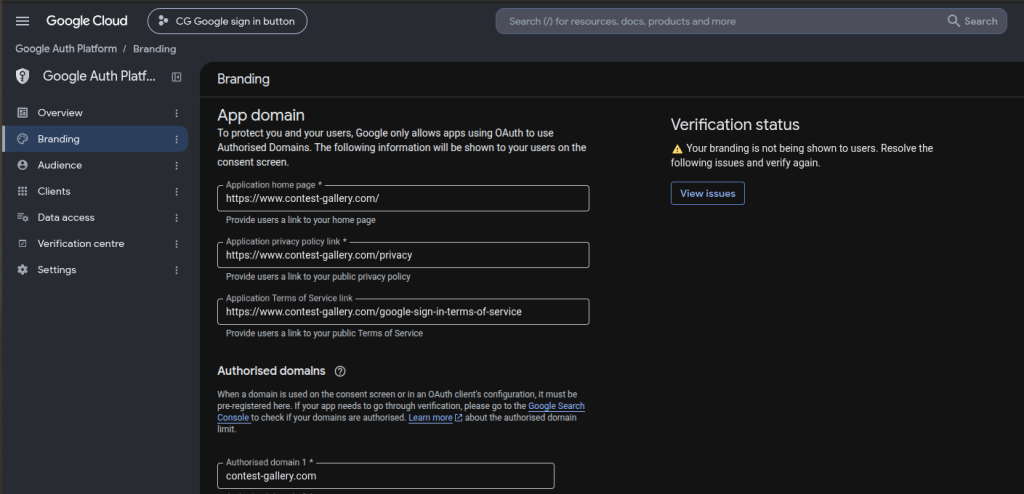
Add a clear application name, user support email and developer contact email. For a public application, add the homepage and privacy policy from the same authorized domain. Add terms of service when they apply.
Use the website or contest name that visitors will recognize on the Google consent screen.
Add the registrable domain that owns the homepage, privacy policy and terms links.
A logo or additional OAuth scopes can trigger extra verification requirements. Follow the current Verification Center guidance shown for the project.
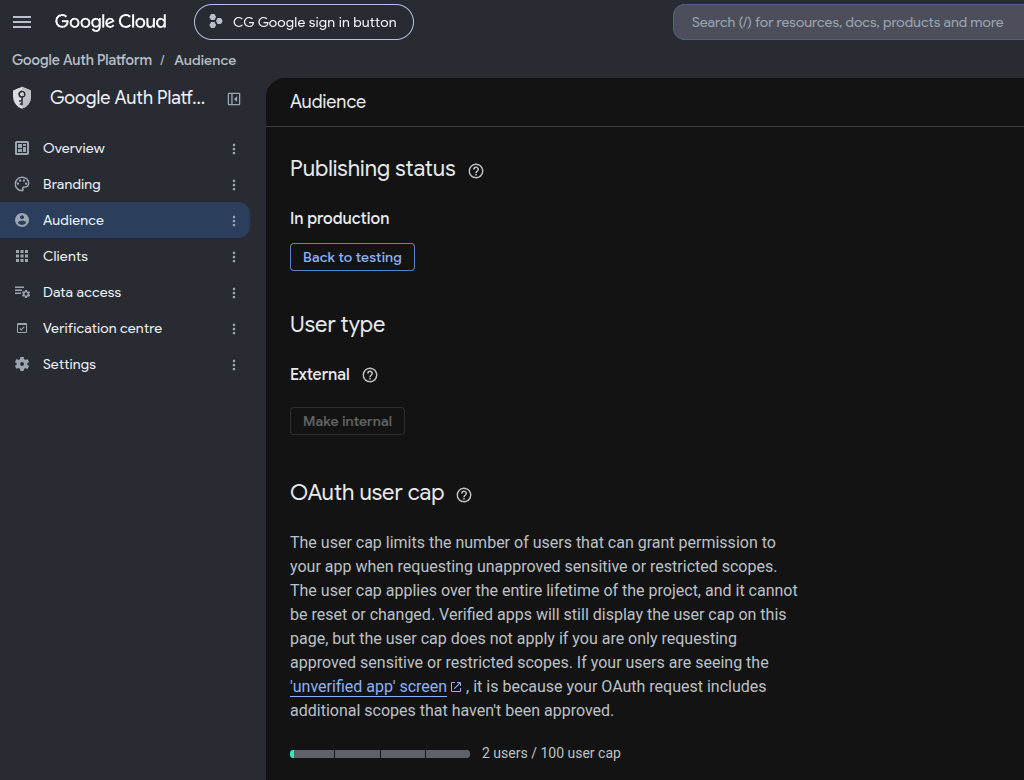
Choose External for a public WordPress site whose visitors can use regular Google accounts. Choose Internal only when sign-in must be limited to users in the same Google Workspace organization.
Keep the app in Testing while setup is incomplete and add every Google account that should test the sign-in flow.
For Contest Gallery sign-in, the default identity scopes openid, email and profile are sufficient. Do not add sensitive scopes that the plugin does not use.
When public visitors should sign in, change the publishing status according to the current Google Auth Platform guidance and complete verification if Google requests it.
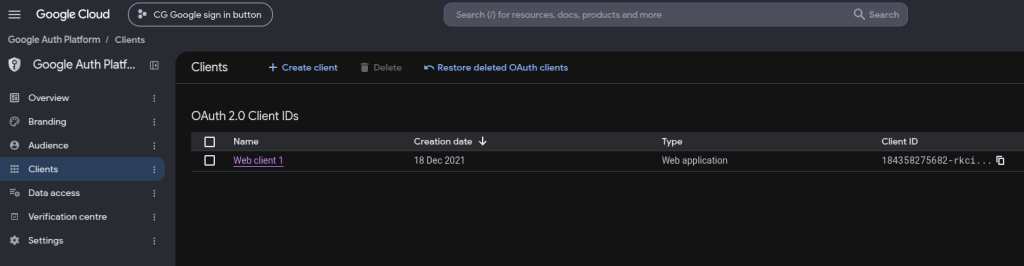
Open Clients, choose Create client and select Web application.
Use a descriptive name that identifies this WordPress installation.
Add the exact HTTPS origin including scheme and hostname, for example https://www.example.com. Do not add a page path.
Contest Gallery uses the Google Identity Services browser callback. It does not require an Authorized redirect URI.
https://example.com and https://www.example.com are different origins. Add both only when the sign-in button can genuinely be served from both. Prefer the canonical origin used by WordPress.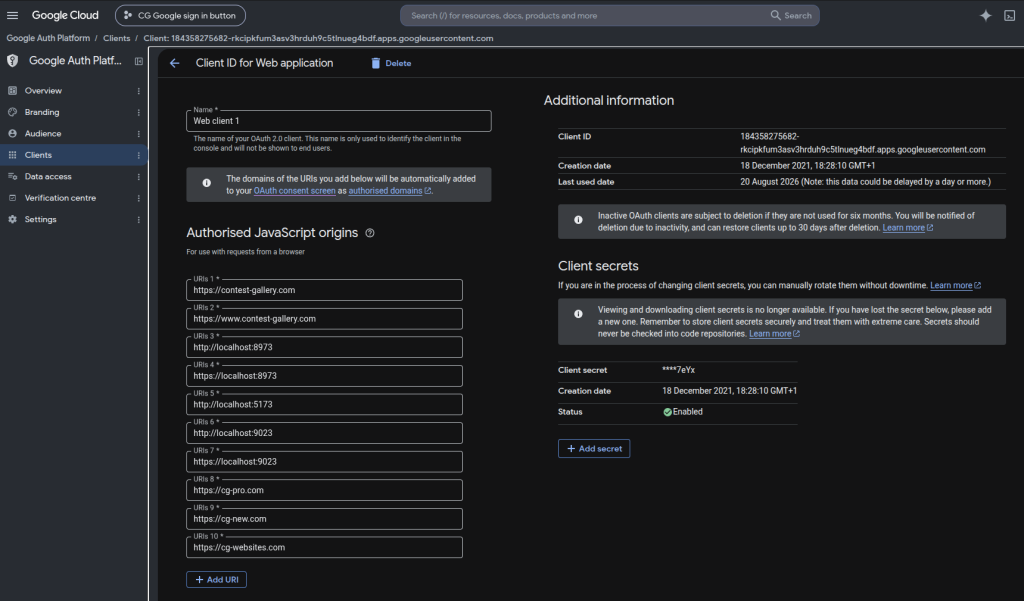
Create the web client and copy the value ending in .apps.googleusercontent.com. This public identifier is the only Google credential required by Contest Gallery.
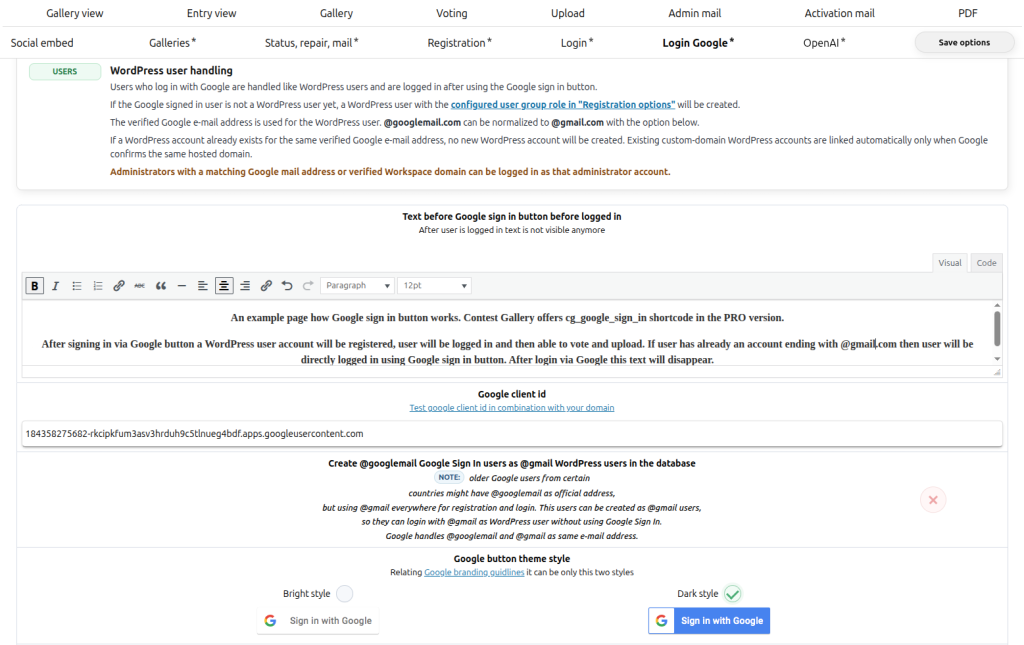
Open Edit options → Login via Google (general). These settings apply to all galleries. Paste the Client ID, save the options and run Test google client id in combination with your domain.
[cg_google_sign_in] has no gallery ID and can be used once per page.
A successful first sign-in creates a WordPress user with the role configured in Registration options.
The verified Google email is matched safely to WordPress. Custom-domain accounts are linked automatically only when Google confirms the same hosted domain.
When configured, Google Sign-In can also appear beside email PIN access for protected voting and frontend uploads.
Confirm that the saved Client ID works with the exact WordPress origin.
Use an allowed test account in a private window and confirm that the correct WordPress role is assigned.
Test every enabled flow such as login, voting, comments and frontend upload.
Publish the Google application only after the complete flow succeeds. Complete domain or app verification when Google requests it.
Use a private window, confirm that the Client ID is saved and check PHP OpenSSL support.
Compare the browser origin with Authorized JavaScript origins. Remove paths and correct www, scheme or port differences.
Add the Google account under Audience as a test user or publish the app when it is ready.
Check consent tools, Content Security Policy and security headers for access to Google Identity Services.