Contest Gallery documentation

Connect Stripe

Connect Stripe test and live API keys, configure instant payment methods and verify a complete sandbox order before launch.

Contest Gallery 33.xPROStripe SandboxStripe Live

Copy the correct API keys

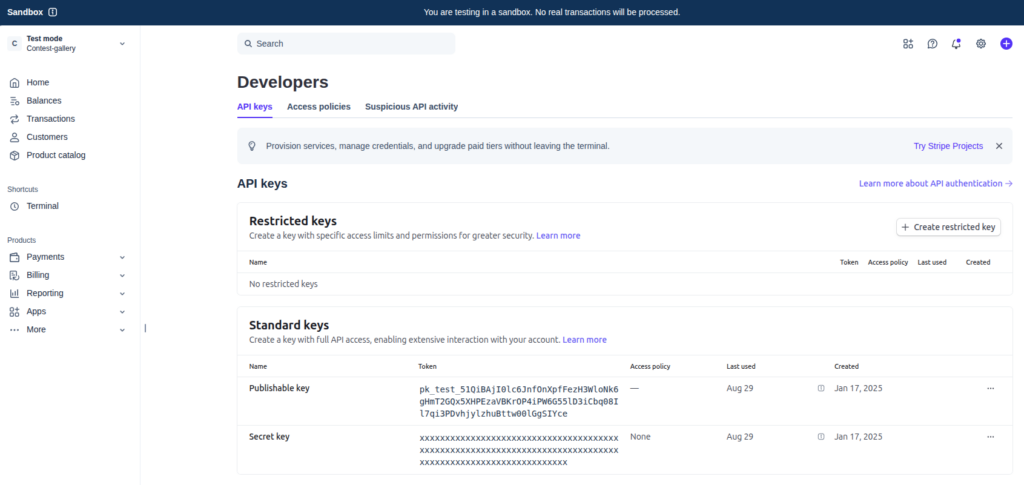
Open the API keys page in Sandbox mode. Copy the publishable key beginning with pk_test_ and the secret key beginning with sk_test_. Live credentials use pk_live_ and sk_live_ and belong only in the Live fields.

Keep the secret private: The publishable key can be used by the browser. The secret key must remain masked in screenshots and must never be pasted into public content, support messages or client-side code.

Open Stripe test API keys → Read the official API keys guide →

Stripe Dashboard in Sandbox mode showing the API keys page with a publishable test key and a completely masked secret key
Stripe test API keys. The publishable test key is visible while the secret key remains completely masked.

Configure payment methods

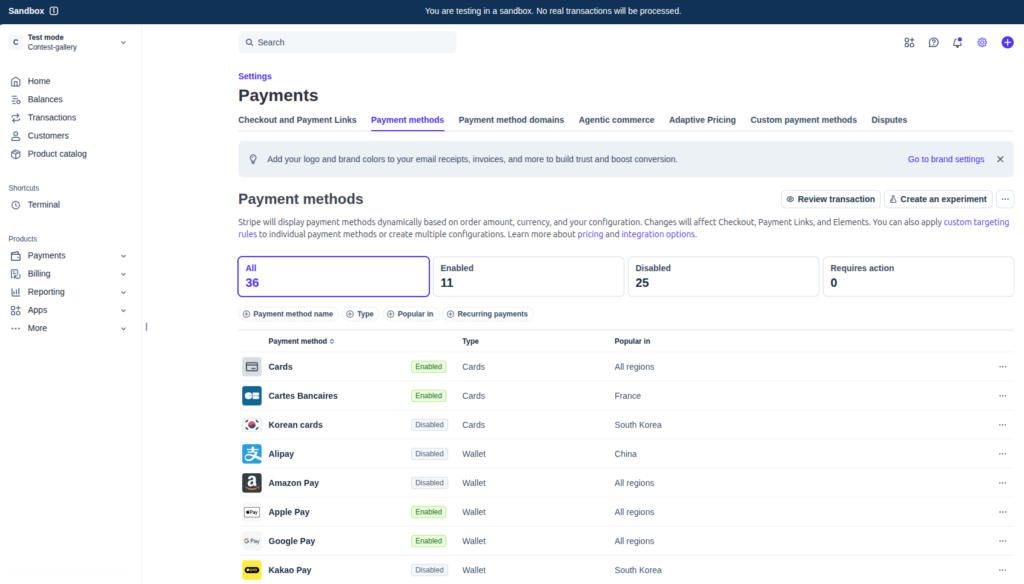
Enable the payment methods that should be available during checkout. Contest Gallery expects an immediately confirmed payment result, so verify every selected method in Sandbox before offering it publicly. Stripe can further limit the visible methods according to currency, location and transaction eligibility.

Open Stripe payment methods → Read the official payment-method guide →

Stripe Dashboard payment method settings in Sandbox mode showing enabled and disabled payment methods
Stripe payment methods. The Sandbox settings show which card and wallet methods are enabled and which remain disabled.

Connect Contest Gallery

Enable Stripe API

Open Ecommerce options and activate Stripe checkout.

Enter Sandbox keys

Paste the test publishable key into Sandbox Client ID and the test secret key into Sandbox Secret.

Save and test

Save the options and use both built-in Sandbox key tests before opening checkout.

Add Live keys later

Enter the separate Live credentials only after the complete Sandbox workflow succeeds.
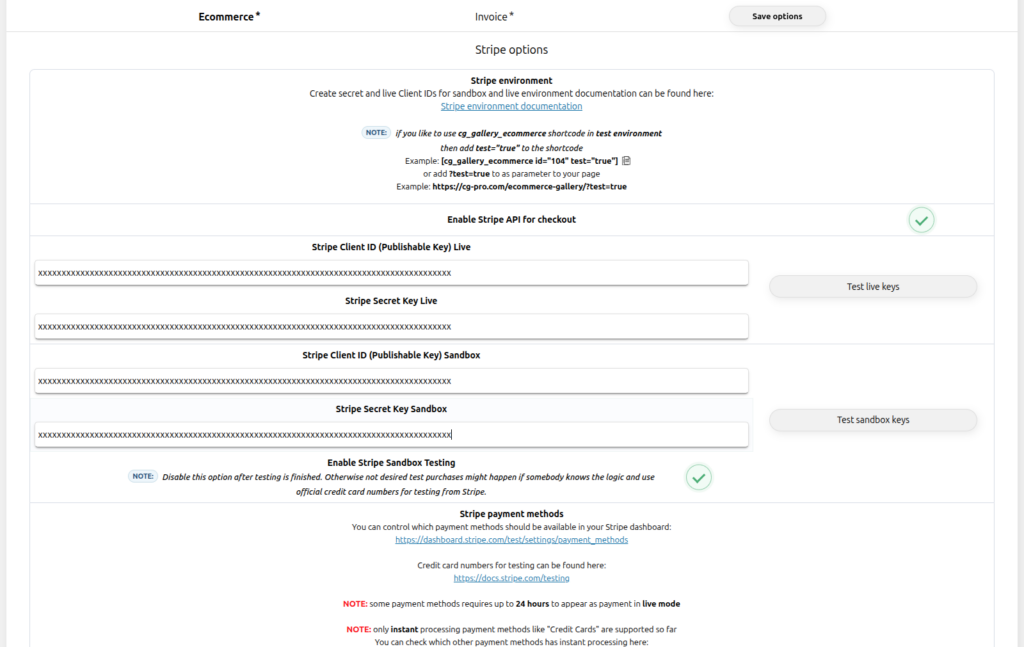
No webhook field is required here: The current Contest Gallery Stripe options do not ask for a webhook signing secret. Do not paste one into another credential field.
Contest Gallery Stripe ecommerce options with masked credentials API activation and sandbox testing enabled
Contest Gallery Stripe options. Enable the API, keep Sandbox testing active and verify both masked test keys before adding Live credentials.

Complete a Stripe test order

Publish a dedicated ecommerce gallery with test="true". Use Stripe test data only. The successful Visa example uses 4242 4242 4242 4242, any future expiry date and any three-digit security code.

Never use real card details in Sandbox: Use only the official Stripe test methods and fictional customer data.

Open the official Stripe testing guide →
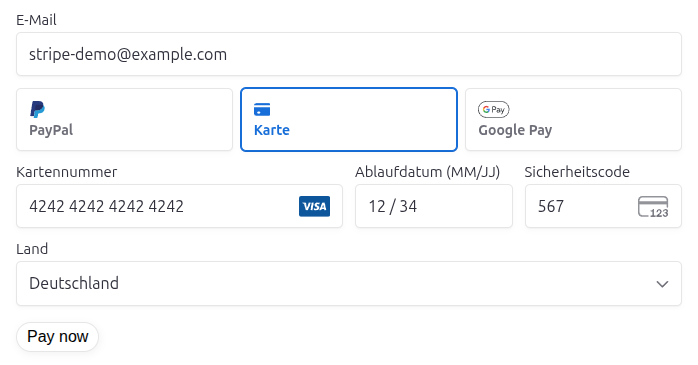
Contest Gallery Stripe sandbox checkout filled with the official Visa test card number a future expiry date and a fictional email address
Stripe Sandbox checkout. The official Visa test number, a future expiry date and fictional customer data are ready for a successful test payment.
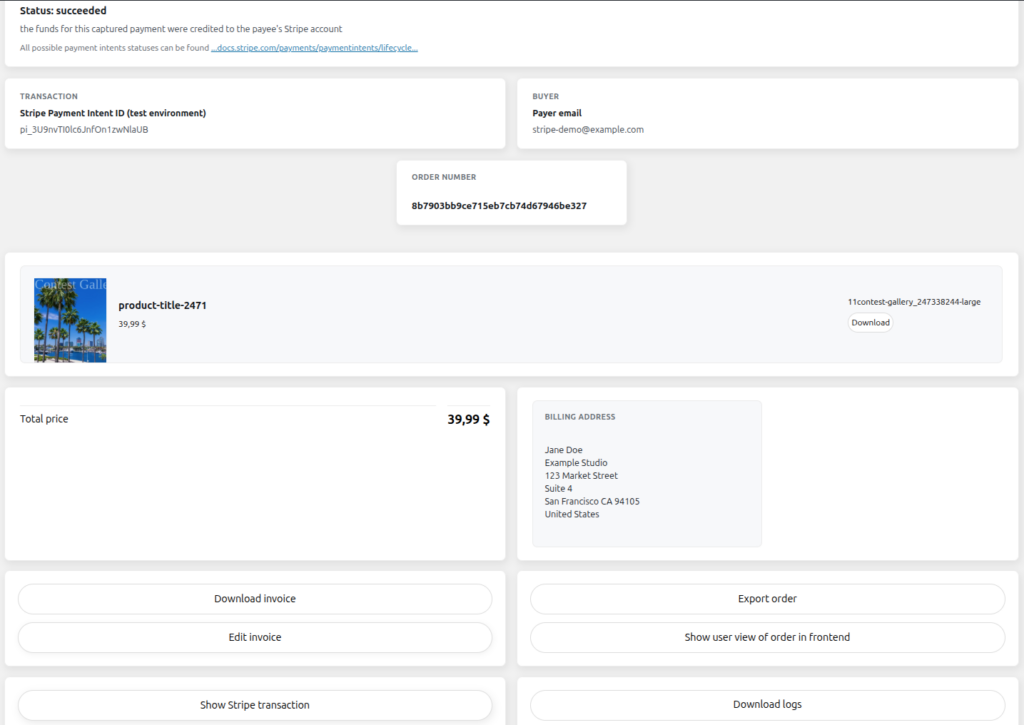
Contest Gallery backend order summary showing a successful Stripe sandbox payment product download total fictional billing address and invoice actions
Contest Gallery order summary. The backend confirms the successful Stripe test payment, purchased download, total, fictional billing address and invoice actions.
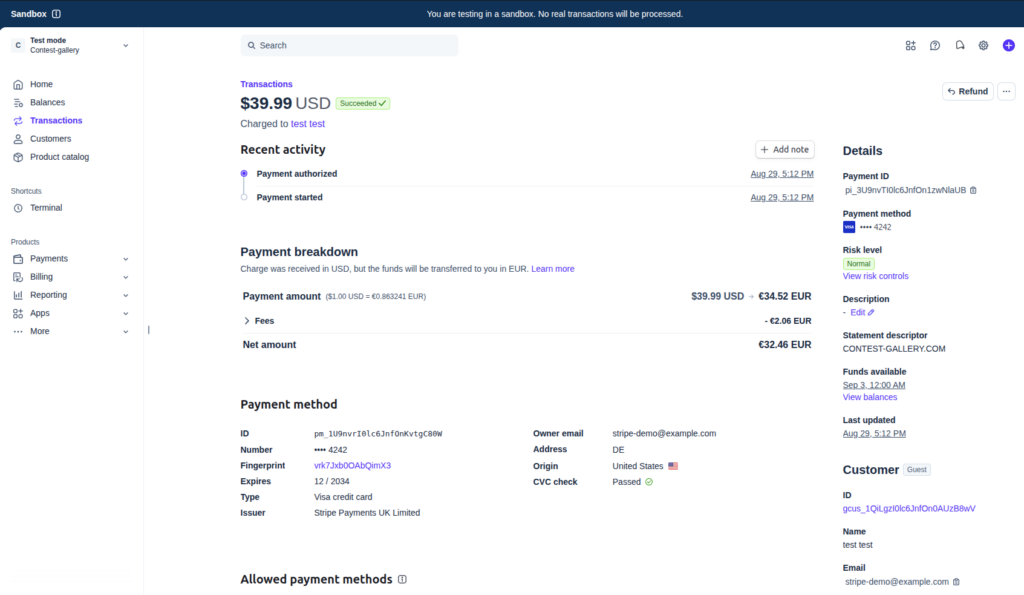
Stripe Dashboard sandbox transaction showing a successful test payment amount activity payment method and fictional customer details
Stripe test transaction. The matching Dashboard payment is marked as succeeded and provides the test amount, activity, payment method and customer details.

Switch to Live safely

Separate environments

Never mix Sandbox and Live keys. Each key pair belongs in its matching Contest Gallery fields.

Repeat the key tests

Save the Live keys and use the built-in Live tests before disabling Sandbox checkout.

Verify a real low-value order

After launch, check one controlled payment, the Contest Gallery order, invoice and Stripe Dashboard transaction from start to finish.